
Amounts, currencies, taxes and fees
Applies to: Whop Payments and Whop Checkout
WHMCS decides the amount to collect, the tax to add, and the currency to bill in. Whop, the payments platform behind both gateways, collects exactly that and reports back what it kept as its fee. This page shows where each of those pieces shows up.
Where you see it
- The invoice summary the customer sees before paying: the amount, any tax lines, and any credit applied.
- The transaction row for that payment in Billing > Transactions: the amount and the fee.
- On WHMCS 9, a credit or debit note against the invoice, since WHMCS 9 keeps the invoice total fixed and records credit as a separate note instead of changing the total.
What happens
WHMCS calculates tax on the invoice. The connected Whop business is set to I'll handle tax myself, so Whop never adds a second tax charge on top of what WHMCS already calculated. WHMCS records one native transaction for each successful payment, using the Whop payment's own ID as the transaction ID and Whop's processing fee, the gross amount minus what Whop paid out, as the transaction's fee.
For example, a $100.00 invoice is paid in full through Whop Payments. Whop keeps a processing fee, say $3.00, for handling the charge. WHMCS records one transaction: amount $100.00, fee $3.00, with the transaction's ID set to the Whop payment's own ID. The invoice turns Paid and its balance reaches zero.
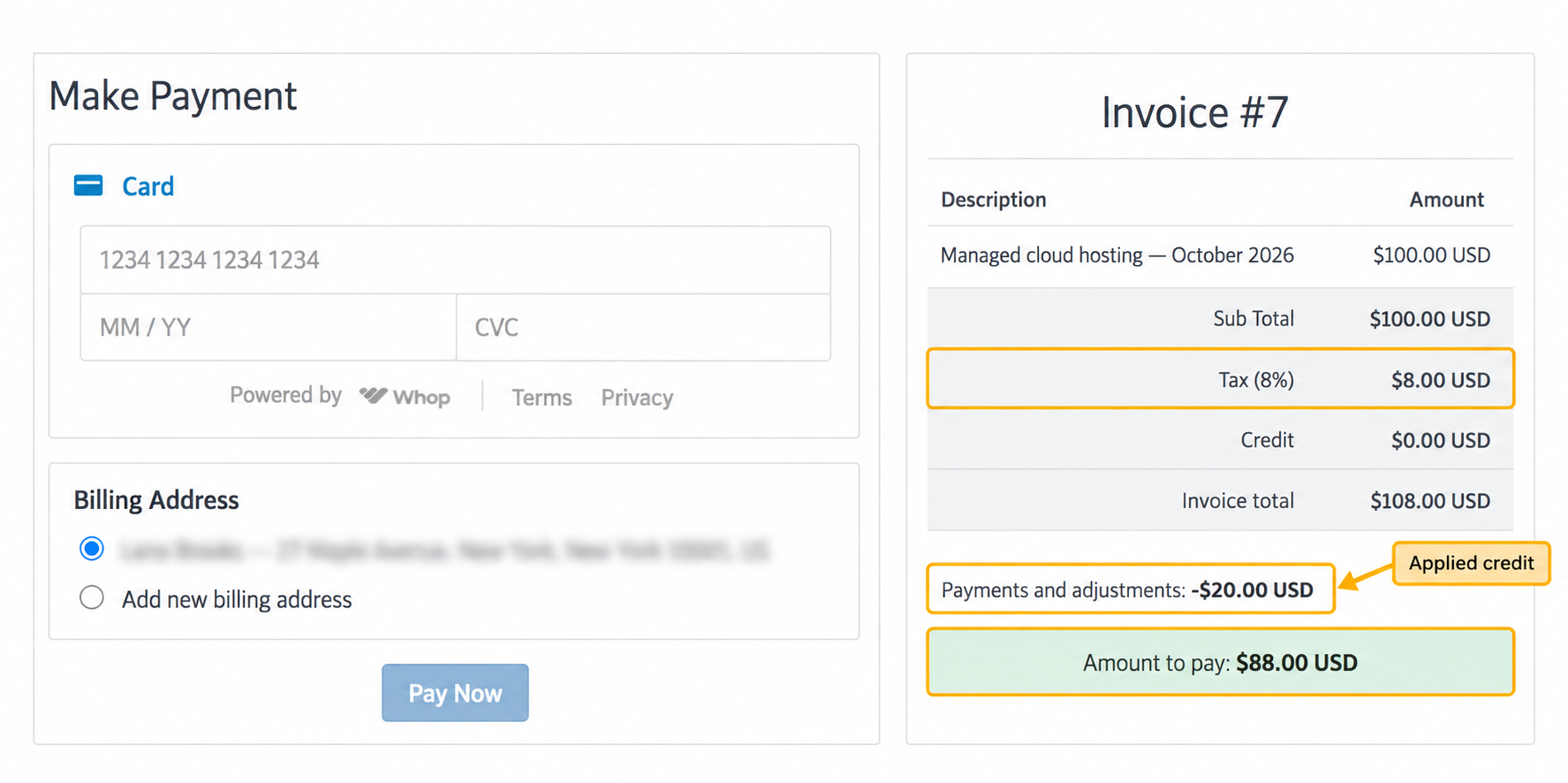
Sandbox: the invoice total is $108.00, including $8.00 tax. A $20.00 credit appears under Payments and adjustments, leaving $88.00 to pay.
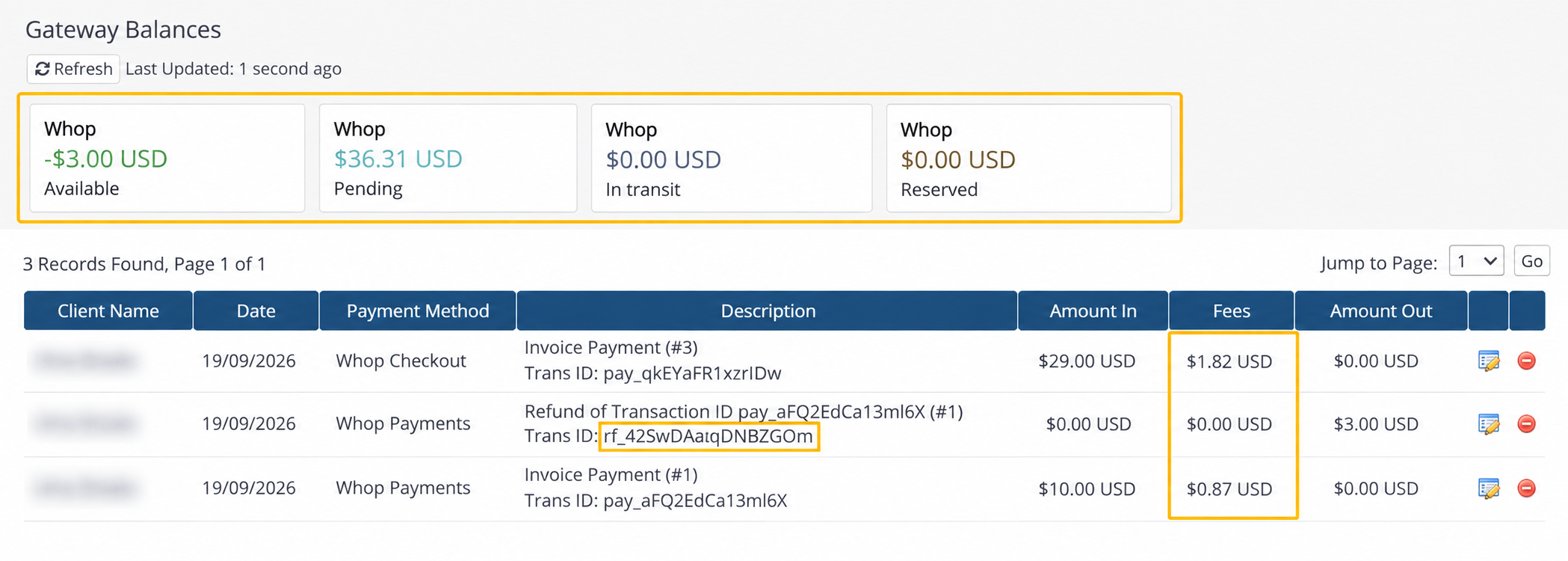
Sandbox: Whop balances appear above the native payment and refund transactions. The original payment retains its processing fee.
Supported currencies
Whop Payments and Whop Checkout together support 77 currencies. 68 of them are available as soon as you connect, including USD, EUR, GBP and most other major currencies. Nine more, CLP, COP, JPY, KRW, MGA, PYG, RWF, VND and XOF, are whole-unit currencies, and only become available once an administrator turns on Enable whole-unit currencies. HUF is not supported at all.
All supported invoice currencies, by ISO code:
AED ALL AMD ARS AUD AWG BAM
BGN BOB BRL BSD CAD CHF CLP
CNY COP CRC CZK DKK DOP DZD
EGP ETB EUR GBP GMD GTQ GYD
HKD IDR ILS INR JMD JPY KES
KHR KRW KZT LKR MAD MDL MGA
MKD MNT MOP MUR MXN MYR NAD
NGN NOK NZD PEN PHP PKR PLN
PYG QAR RON RSD RUB RWF SAR
SEK SGD THB TRY TTD TWD TZS
USD UYU UZS VND XCD XOF ZAR
If an invoice is billed in a currency Whop does not support, the gateway does not disappear from the invoice. Instead, its payment area shows a short message: "Whop payments are not available for invoices in {CURRENCY}. Please choose a different payment method."
For a balance that changes while checkout is open, see the illustrated amount-change sequence. The customer reviews and approves the new amount before the full payment page charges it.
Whole-unit currencies
Whop only ever collects a whole number of units in these nine currencies, for example 1000 JPY, never 1000.25 JPY. If the invoice's outstanding balance includes a fraction in one of these currencies, the payment area shows: "Whop can only collect whole amounts in {currency}. This invoice balance includes a fraction. Please choose a different payment method." WHMCS never rounds that balance to make it whole; the customer needs to clear the fraction first or pay with a different method.
These currencies also refund differently: only a full refund of what remains on the payment is available, never a partial one. See Refunds.
Local currency payments
Whop calls this Adaptive Pricing. In WHMCS, the setting is named Local currency payments and belongs to Whop Checkout. It is off by default and does not apply to the Whop Payments card form.
Turn on Adaptive Pricing
- Open Payment Gateways > Whop Checkout.
- Enable Local currency payments.
- Click Save Changes and open a new Whop Checkout payment screen.
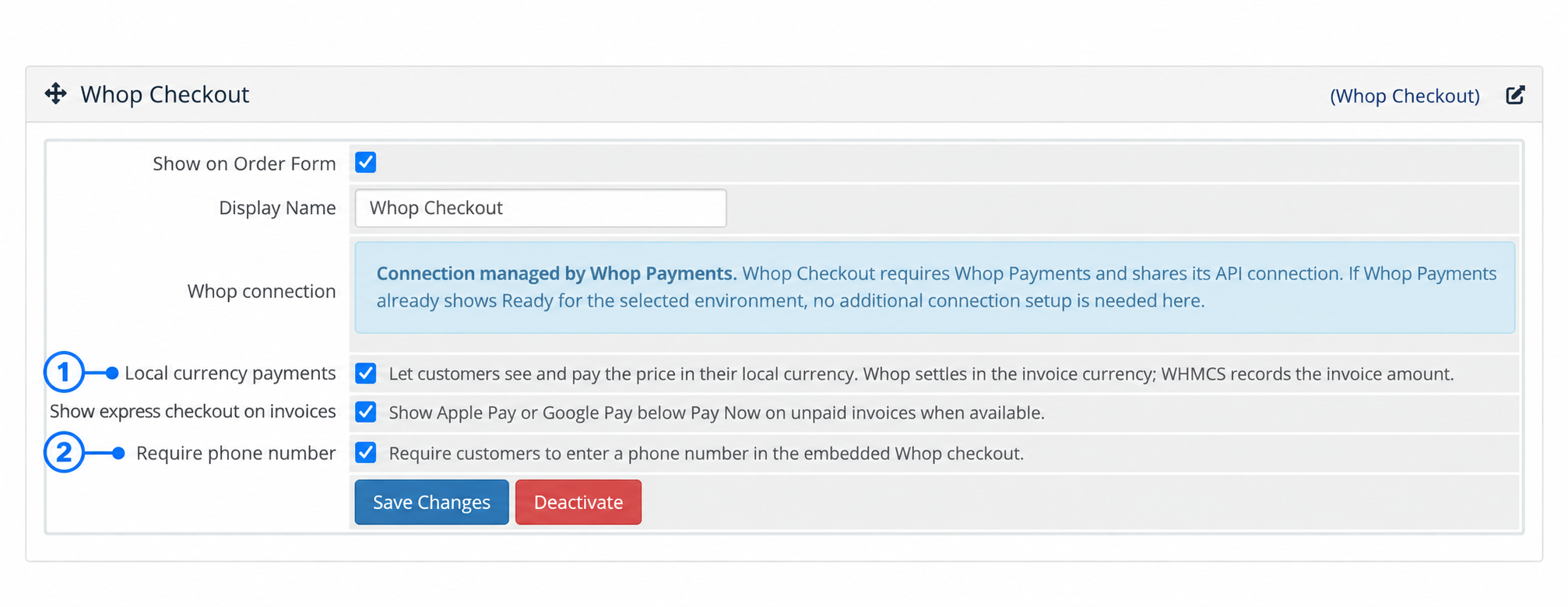
Enable Local currency payments (1) to offer Adaptive Pricing. Require phone number (2) is a separate choice.
What the customer sees
Whop supplies a local-currency quote and its exchange rate. The invoice summary keeps showing the invoice's own currency. A choice such as Pay in USD instead lets the customer return to the original currency before paying. Availability depends on the currencies and payment methods Whop offers for that checkout.
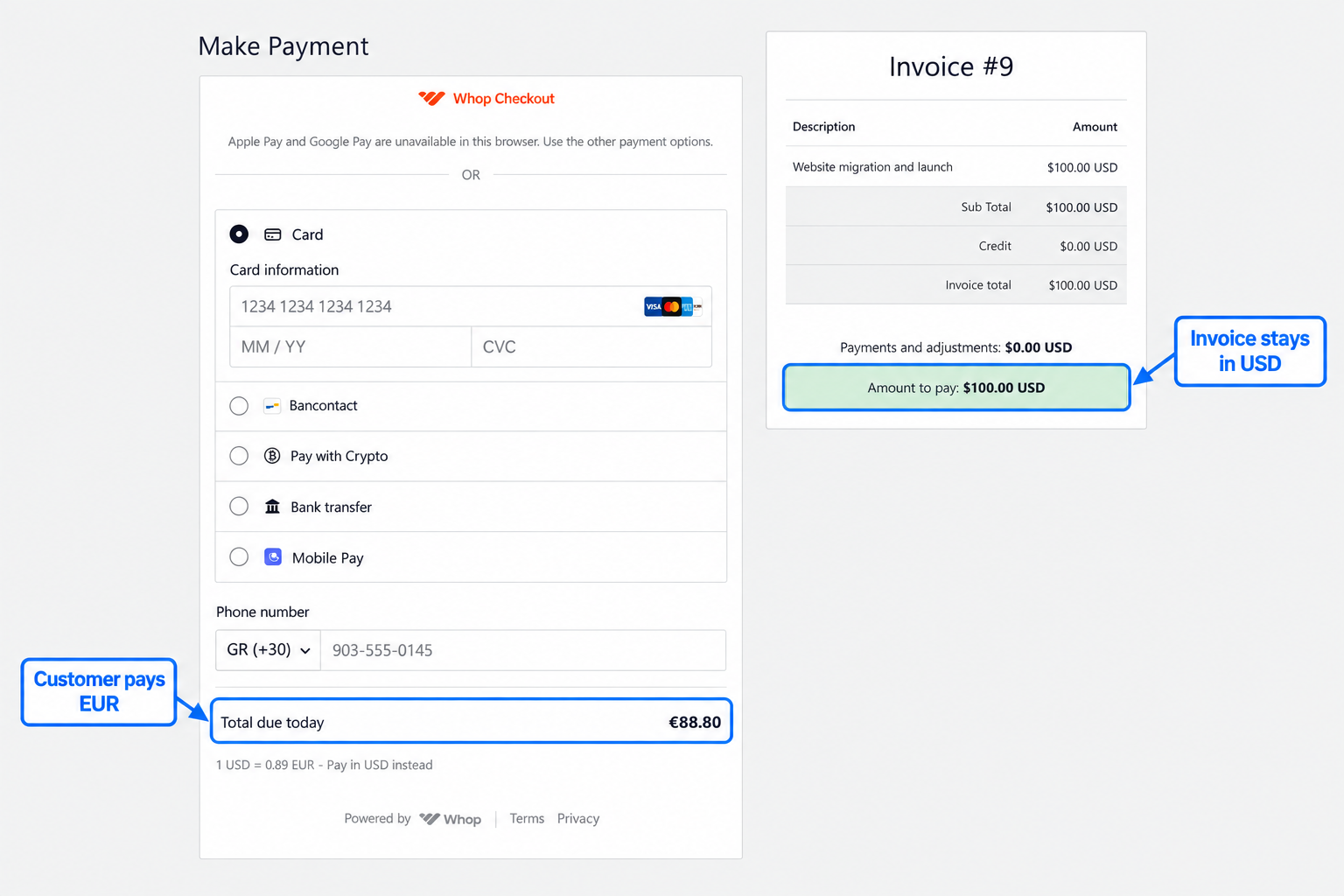
Sandbox example: the customer is quoted €88.80 for a $100.00 USD invoice. The quote and exchange rate are examples from this payment, not a fixed conversion rate.
Compare the payment in Whop and WHMCS
In Whop, open Payments and find the invoice. The Amount column shows the customer's payment currency, while Plan shows the original price. Here, the same row shows €88.80 paid and a $100.00 plan for Invoice #9.
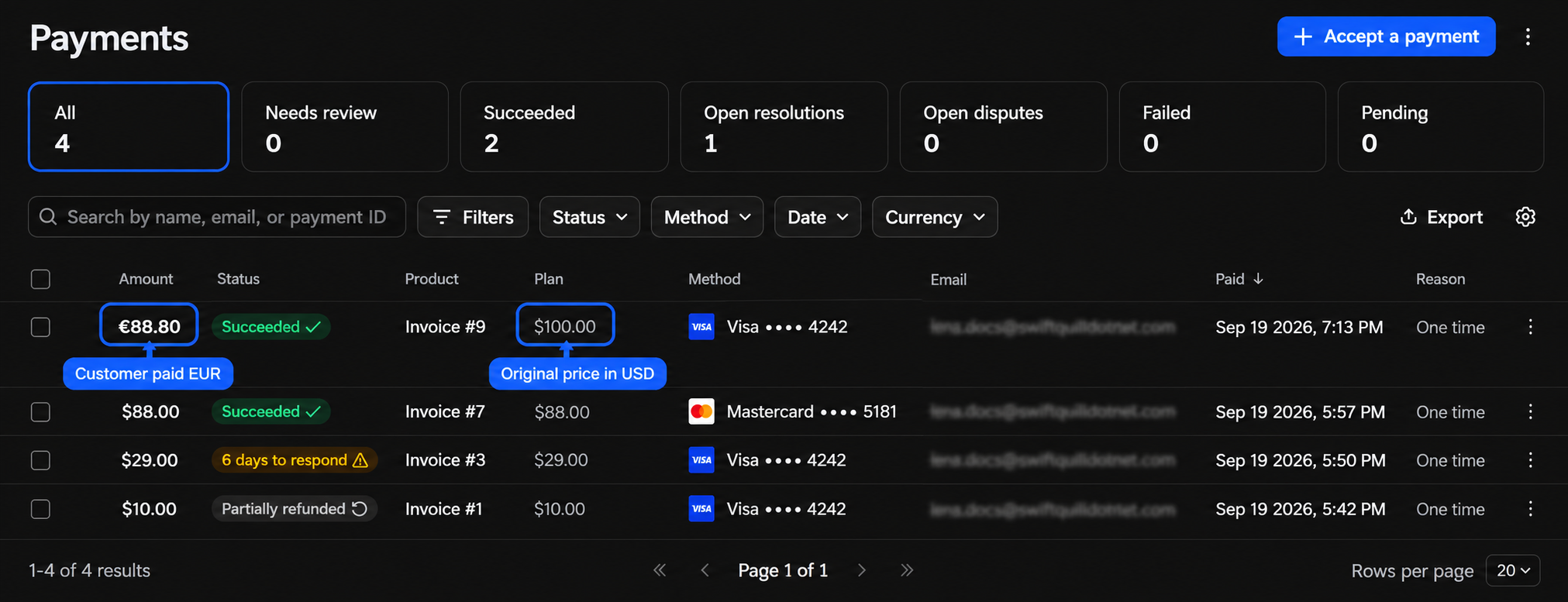
Sandbox: Amount and Plan use different currencies for the same successful payment.
Open that payment to see Breakdown. In this example, the payment details display the USD settlement: $100.00 gross, $5.37 fees and $94.63 net. Even the Customer paid line on this details screen is shown in USD; use the Payments list's Amount column to see the €88.80 collected from the customer.
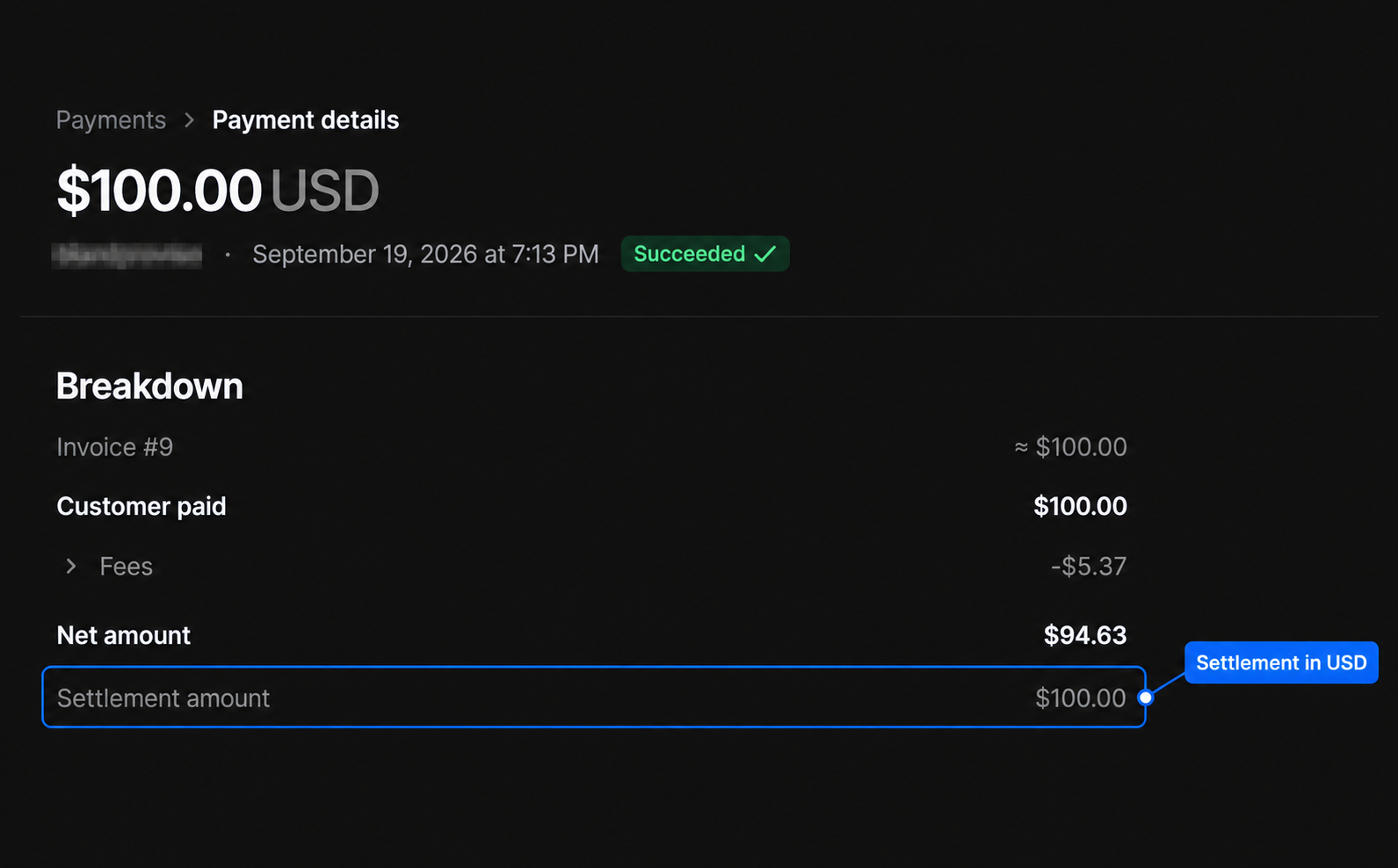
Sandbox: the detail screen shows the settlement currency and the processing fee.
Back in WHMCS, Invoice #9 is Paid with a $0.00 USD balance. Its ledger records $100.00 USD, a $5.37 USD transaction fee and the same Whop payment ID. The euro quote does not replace the invoice currency or its issued total.
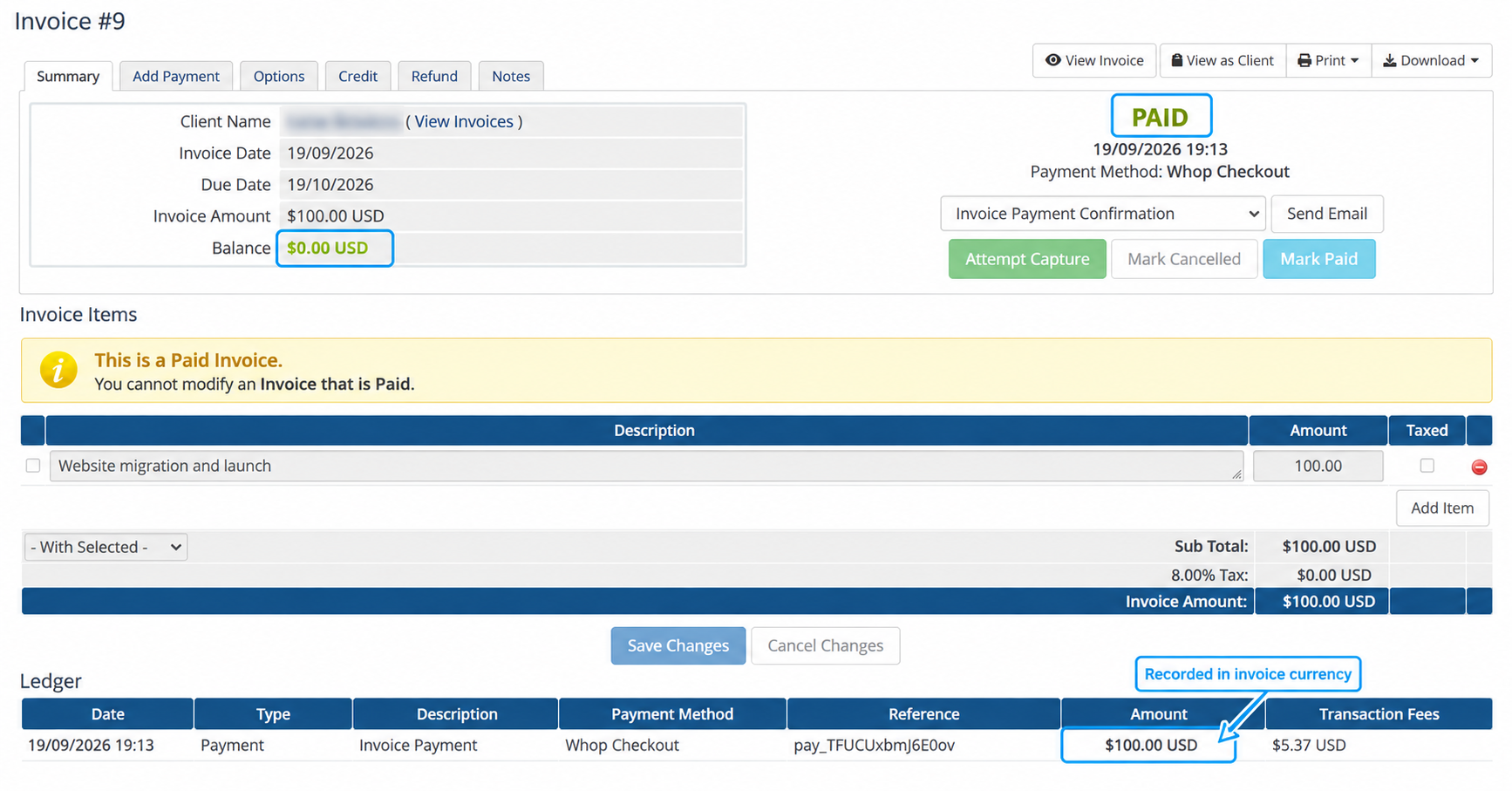
Sandbox: WHMCS records the payment and fee in the invoice currency.
Small settlement differences
WHMCS always records at least the invoice amount.
Because Whop converts that quote back to the invoice currency at the moment it settles, the amount it actually settles can land a little below or above the invoice amount. For example, a $2.00 invoice that settles at $1.99 still records $2.00 against the invoice; the missing cent is folded into the transaction's fee. A $2.00 invoice that settles at $2.01 records $2.01, and WHMCS credits the client the extra cent. Either way, the invoice turns Paid. This is exchange-rate rounding between the quote Whop shows the customer and the amount Whop settles.
Refunding a payment made this way is explained in Refunds.
Processing fees
Whop keeps a processing fee out of every payment it collects, and WHMCS records that fee on the transaction. It is Whop's own cost of handling the charge, not an extra line WHMCS charges the customer. If the fee is not yet known when WHMCS first records the payment, WHMCS records the payment right away and adds the fee when Whop reports it, normally within the first hour after the payment.
Settings involved
- Enable whole-unit currencies (Payment Gateways > Whop Payments): turns on the nine whole-unit currencies for new charges. See Settings reference.
- Local currency payments (Payment Gateways > Whop Checkout): lets the customer see and pay a quote in their own local currency. See Settings reference.
Related: Refunds, Balances, payouts and transactions, Paying an invoice.
Updated 16 days ago