
Meet Whop
Whop is the payments platform this module connects WHMCS to. This page gets you comfortable with it before you set anything up.
What Whop is
Whop is a payments platform that sits on top of several payment processors, such as Stripe, and routes each payment to the processor most likely to accept it. That routing is called payment orchestration. It is a paid feature, and the setup guides in this documentation turn it on.
Whop is the merchant of record for card network rules and payment settlement. It is not the seller of your services, and this integration does not use Whop's merchant-of-record tax handling: you stay responsible for tax, and WHMCS calculates it.
A Whop business, not a Whop user
A Whop user is a person with a Whop login. A Whop business is the account that actually receives payments and holds the settings, like its tax choice and which payment methods it accepts. One Whop user can own or manage several Whop businesses. When people talk about "your Whop account," they usually mean the business, not your personal login.
Sandbox and Live: two separate businesses
Whop gives you two environments, Sandbox and Live. Each is its own business, with its own dashboard and its own API key, the credential WHMCS uses to act on the business's behalf. Nothing you do in Sandbox reaches Live. Set up and test in Sandbox first, with Whop's own fake test cards, then repeat the same settings in a Live business once you are ready to take real payments.
What a business needs before it can sell
A Whop business needs a few settings set before it is ready to sell through WHMCS:
- Payment orchestration on, in Settings > Checkout.
- Optionally a statement descriptor (the text that shows up on the customer's card statement), set in Settings > Checkout.
- Send transactional emails to your members off, because WHMCS already sends its own receipts and payment emails.
- The tax choice I'll handle tax myself, Tax type: Inclusive, and Collect VAT IDs from users off in Settings > Tax, because WHMCS calculates the invoice tax.
- Card payments active, with whichever other payment methods you want in Settings > Checkout, and PayPal set up separately in Settings > Payments if you want to offer it.
- An API key with the right access, created in Whop's Developer area.
Verification
Whop checks who you are before it pays you. There are two kinds, Individual and Business verification, both done inside Whop. Individual verification is usually quick. Business verification can take a little longer. You can start selling before either one is finished, with a limited set of payment methods and up to a threshold Whop sets. Withdrawing your balance needs a completed verification.
How you get paid
Your balance in Whop splits into money that is available now, money still pending, and money held in reserve. A payment has to settle before you can withdraw it. Balances, payouts and transactions covers withdrawals, the Whop Card and automatic withdrawals in full.
Whop's fees
Card payments cost 2.7% plus $0.30 for a domestic card, with an extra 1.5% for international cards and 1% for currency conversion. There is no monthly fee. For example, a $50 domestic card payment costs about $1.65 in Whop's card fee. Optional features cost extra only when you turn them on: payment orchestration, for instance, costs 0.8% per transaction. Payout and dispute fees are charged per payout and per event; check Whop’s current pricing and the rates shown for your account.
Where things live in the Whop dashboard
| Place | What's there |
|---|---|
| Settings > General | Business name, description, logo |
| Settings > Checkout | Payment orchestration, statement descriptor, payment methods, customer transaction emails |
| Settings > Payments | Checkout limit, 3D Secure policy, PayPal, automatic refund thresholds |
| Settings > Tax | The tax handling choice |
| Settings > Verifications | Individual and Business verification |
| Settings > Notifications | Staff alerts for disputes, resolution center cases, and withdrawals |
| Developer | API keys and webhooks |
| Home > currency balance > Withdraw | Your balance, withdrawals, and payout methods |
| Resolution Center | Cases customers open, with the refund thresholds set in Settings > Payments |
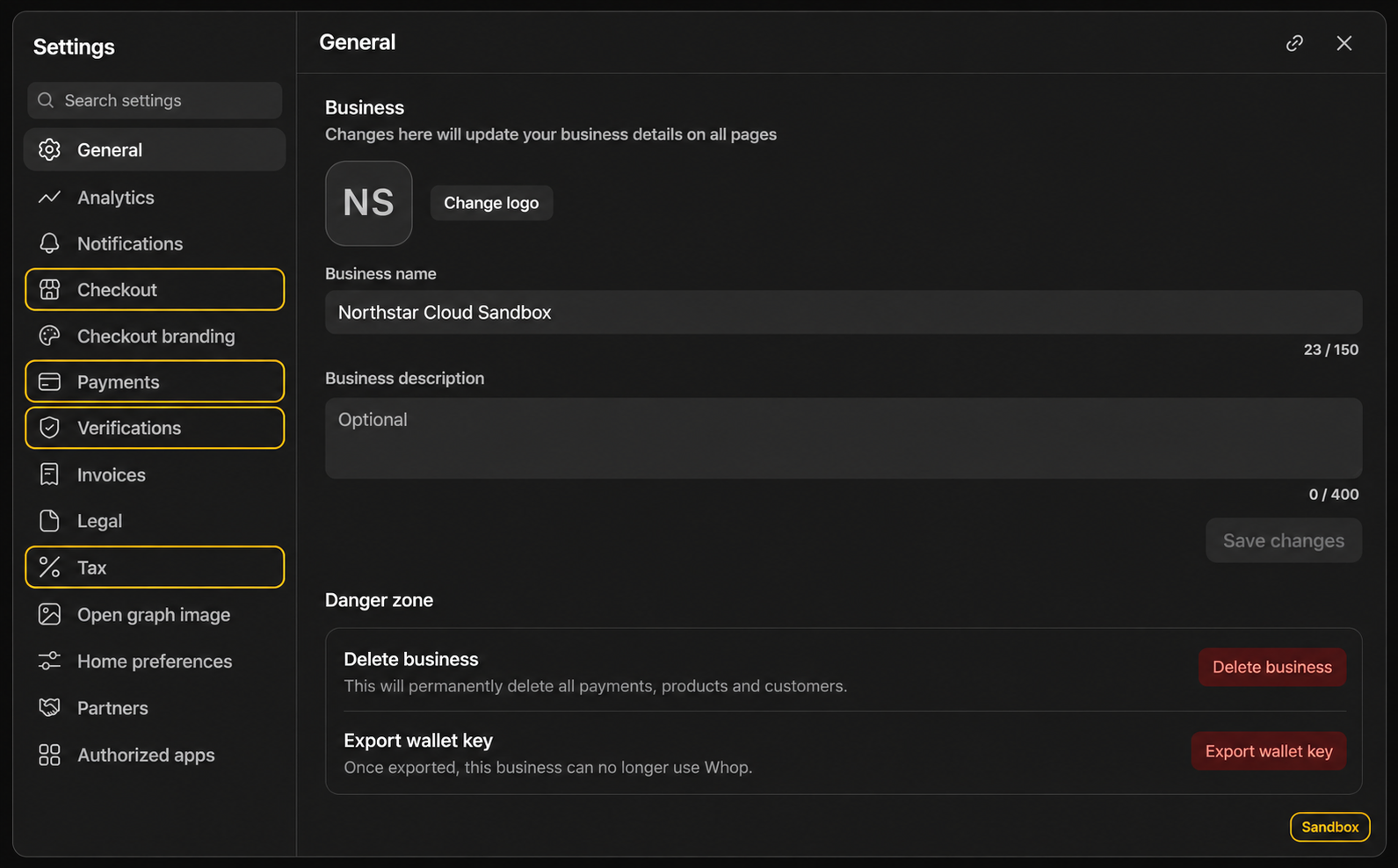
Sandbox: business-wide options are grouped under Settings.
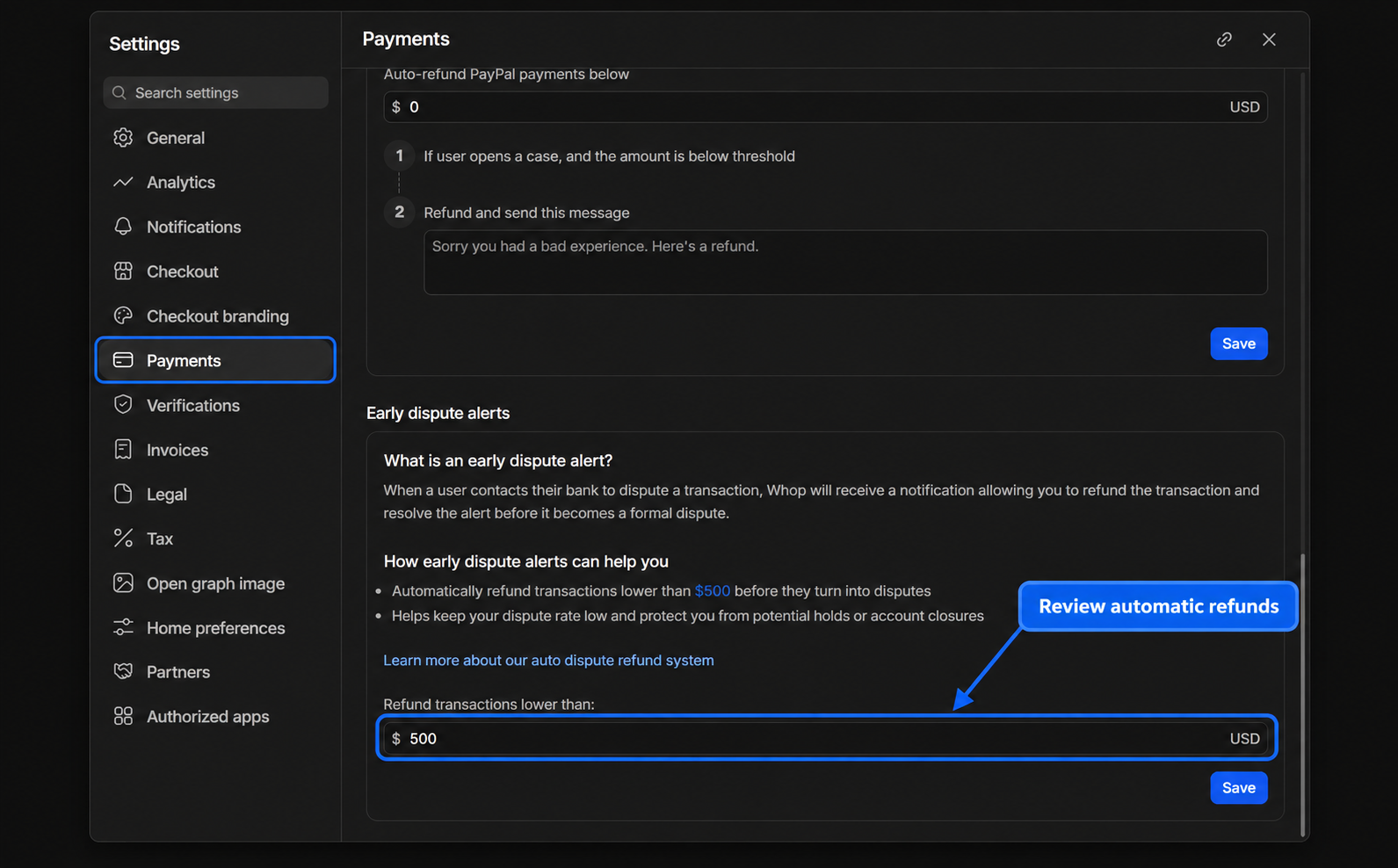
Live: early dispute alerts have their own automatic-refund threshold. Choose values deliberately; this example is not a recommended threshold.
Next: Requirements and limits
Updated 16 days ago