
Switch from another gateway
If you already collect payments through Stripe, PayPal, 2Checkout or another gateway, you can add Whop Payments, this module's card gateway for Whop, without disrupting anyone. Whop Payments is the main gateway this module adds; it accepts cards and can save one for later. You do not need to move every customer at once.
Identify the existing arrangement
Before you move a customer, find out what actually causes their next charge today.
| What you find | What the move needs |
|---|---|
| The customer pays each invoice by hand | Just offer Whop on their next invoice and let them choose it |
| WHMCS charges a saved card automatically | The customer must save a new card with Whop first, then you point their invoice or service at Whop |
| The old gateway runs its own subscription or billing agreement | Cancel or replace it at that provider; changing a WHMCS setting does not stop it |
Also check for invoices the old gateway already issued. Those stay exactly as they are.
What moves automatically
Nothing at the old gateway is imported. Your clients, products, invoices, credits and billing history all stay in WHMCS unchanged, and WHMCS keeps scheduling every renewal. Only the gateway that collects the money changes.
A saved card from Stripe, PayPal or 2Checkout cannot become a Whop card, or a Pay Method (WHMCS's own term for a saved payment method). Each customer saves a new card with Whop when they choose to: Whop offers to keep the card while they pay a Whop Payments invoice, and they can also add one from Payment Methods. The card appears in WHMCS once Whop confirms it can be reused.
A gradual switch
You do not need to cut over on a single day.
- Keep the old gateway active for existing arrangements while Whop Payments (and Whop Checkout, if you use it) run alongside it.
- Use Show on Order Form to steer new orders: turn it on for Whop and off for the old gateway, so new customers land on Whop from day one.
- For an existing client or product you want to move, first confirm a reusable Whop card is listed if you need automatic collection. Then change its assigned payment method to Whop when you are ready.
- Check what will collect the next renewal. A saved Whop card and a new client default do not by themselves move an existing service, or an invoice WHMCS has already generated, so review the payment method on the service, on upcoming invoices and on the client. Verify one full renewal cycle before moving more customers.
For example, Priya's hosting plan renews on the 14th of each month through her old gateway. Her admin changes her invoice's payment method to Whop Payments on the 2nd. The invoice due on the 14th still generates the same way it always has. When Priya pays it, Whop Payments can save the card after Whop confirms it is reusable. Her admin checks Payment Methods before relying on automatic collection. Her paid-through date and next due date do not change; only the gateway collecting the money does.
Prevent duplicate collection
If the old gateway is still running its own subscription for a client you have already moved to Whop, you will collect twice: once from the old subscription, once from Whop. One unpaid invoice should have one intended collection route.
For each client you move, check both sides:
- In WHMCS, confirm the invoice or service now points at Whop.
- At the old gateway, confirm its own subscription or billing agreement for that client is actually canceled.
Turning off Show on Order Form, or hiding a payment button in WHMCS, is not proof that a subscription at the old provider was canceled. That cancellation has to happen at the old gateway itself.
Keep access to old payments
Payments the old gateway already collected stay in WHMCS as transactions, exactly as before. Refunding one of them still happens through the old gateway, not through Whop: a Stripe payment is refunded through Stripe.
Do not relabel an old transaction as a Whop payment, and do not replace its transaction ID. Whop's refund tools only apply to payments Whop itself collected.
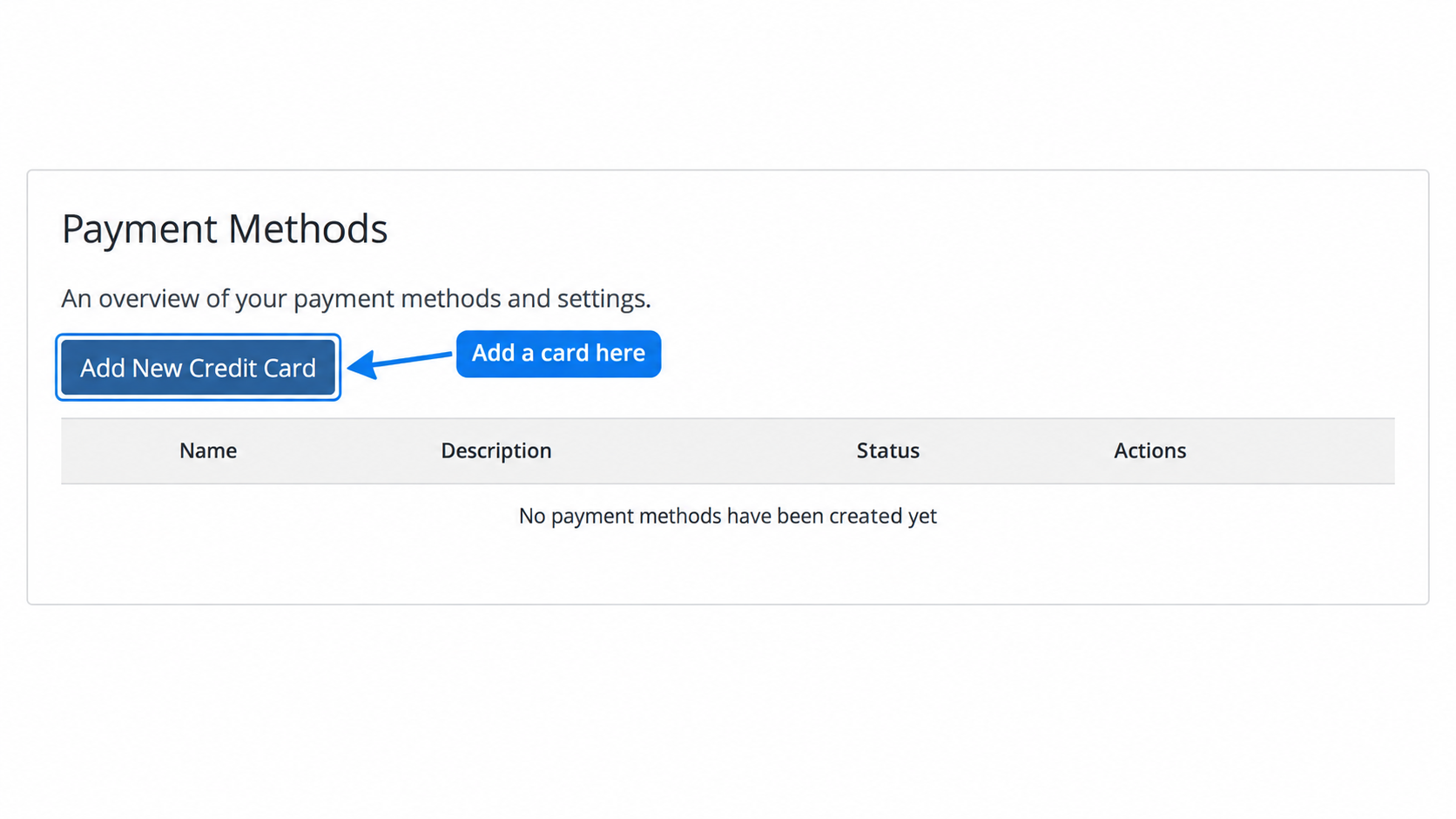
Sandbox: customers add their Whop card from Payment Methods. An existing card at another gateway is not imported.
Related: Install the module, Saved cards and automatic payments, The two gateways side by side
Updated 16 days ago