
Test a payment
Make one Sandbox payment from start to finish, then check that WHMCS recorded it the way it should. Do this before you ever take a real payment.
Before you start
- Sandbox reads Ready and In use in Payment Gateways > Whop Payments. If it does not, finish Connect WHMCS to Whop first.
- WHMCS's cron job, the scheduled task that finishes payments and delivers updates, runs on its normal schedule.
- You have a client record you use only for testing, or you can create one now.
1. Create a test invoice
- In the admin area, open or create a client you use only for testing.
- Create a new invoice for that client with a small amount, for example USD 10.00.
- Set the invoice's payment method to Whop Payments.
- From the client's summary, choose Login as Owner so you see the invoice the way a customer would.
- Open the invoice and choose Pay Now.
Done: the Whop Payments card form loads on the invoice.
2. Pay with a Sandbox card
Enter this public test card. It only works in Sandbox, Whop's practice environment for trying things safely, never in Live, and it never touches real money.
| Field | Value |
|---|---|
| Card number | 4242 4242 4242 4242 |
| Expiry | Any future date, for example 12/34 |
| CVC | Any 3 digits, for example 123 |
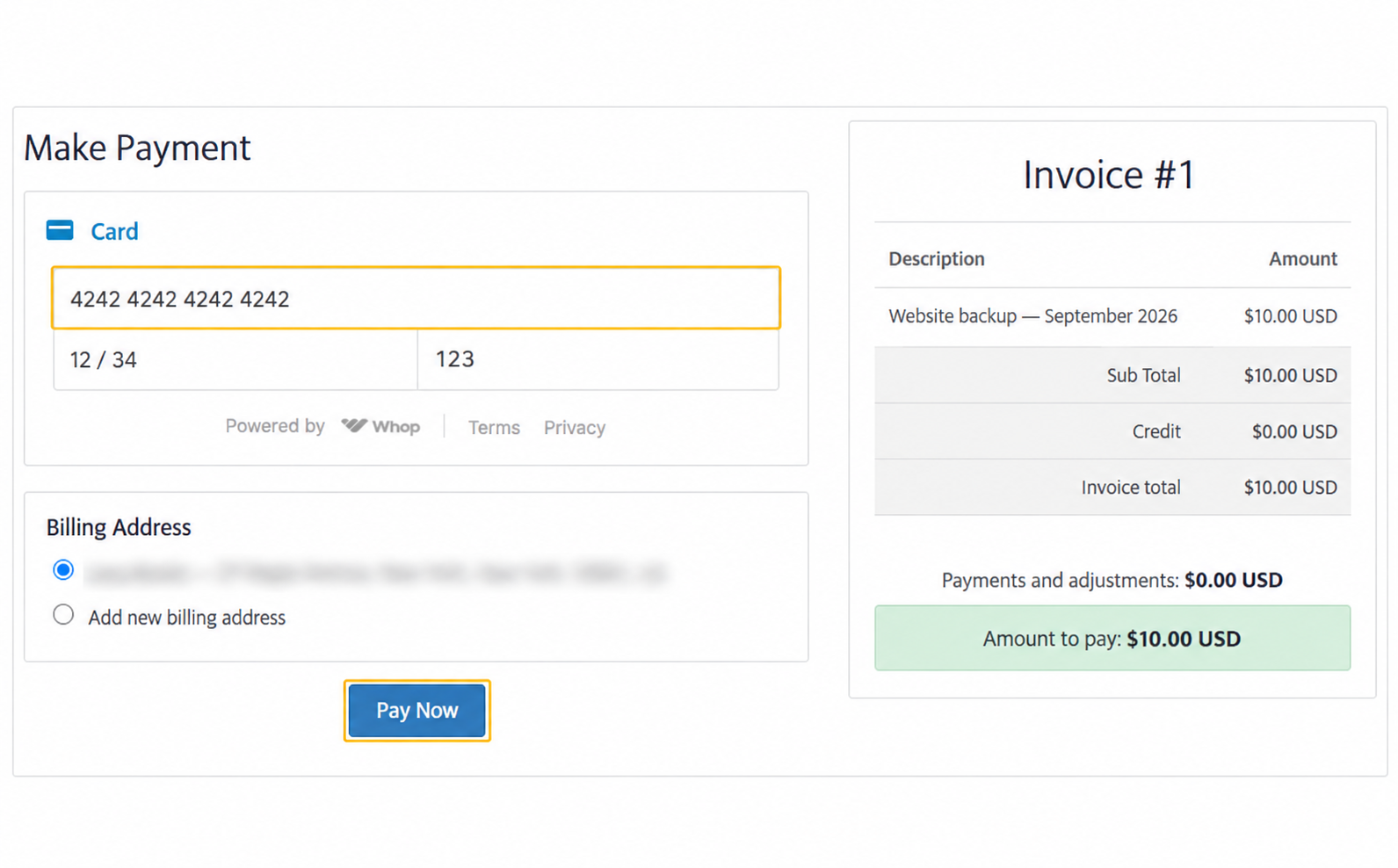
Sandbox: enter the public test card, check the invoice amount, and choose Pay Now.
Fill in the billing address, then choose Pay Now. Sandbox cannot force a challenge, so it always behaves as if your 3D Secure for payments setting were Require a challenge when the processor asks, even if you left the stricter Always require a challenge default in place.
Wait for the result page to finish. Done: it reports the payment succeeded and returns you to the invoice.
3. Confirm what WHMCS recorded
Back in the admin area, open the same invoice and check:
- The invoice status reads Paid, with a zero balance.
- Its Ledger shows a payment whose reference starts with
pay_, Whop's own ID for this payment. You can also find it under Billing > Transactions. - That transaction usually lists a small fee next to the amount, which is what Whop kept for processing it. A fee that is not there yet fills itself in shortly. The payment is complete either way.
- Under Billing > Gateway Log, an entry with Gateway Whop Payments and Result Whop Cards: Payment posted confirms the module verified this payment directly with Whop, not just trusted the browser.
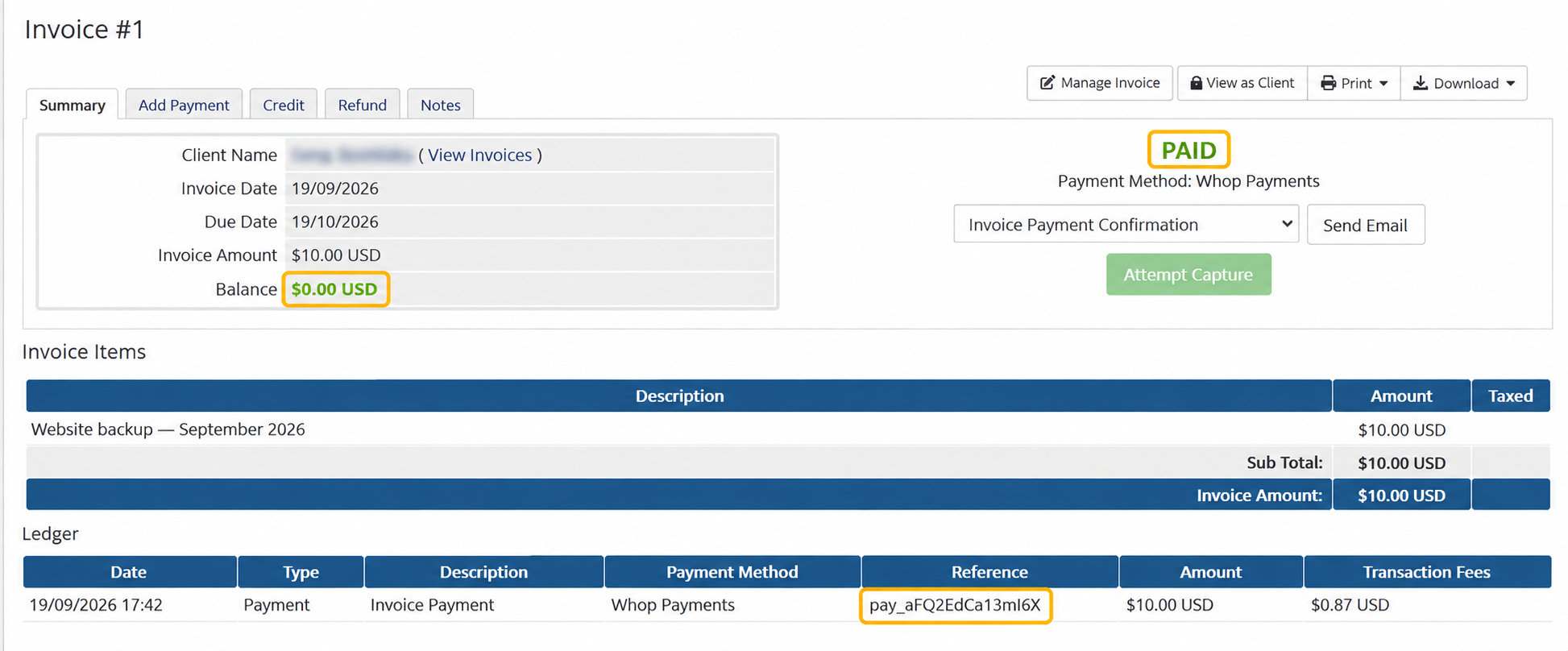
Sandbox: the paid invoice has a zero balance and a payment reference beginning with pay_.
Done: Paid, one pay_ transaction, and a matching Gateway Log entry.
4. Test the features you will use
Use a fresh test invoice for each of these, so the results are easy to tell apart.
-
Saved cards. Open the client's Payment Methods. Confirm a reusable Whop card is actually listed. A paid invoice alone does not prove a card was saved. If the list is empty, try Add New Credit Card and follow the card-save troubleshooting steps.
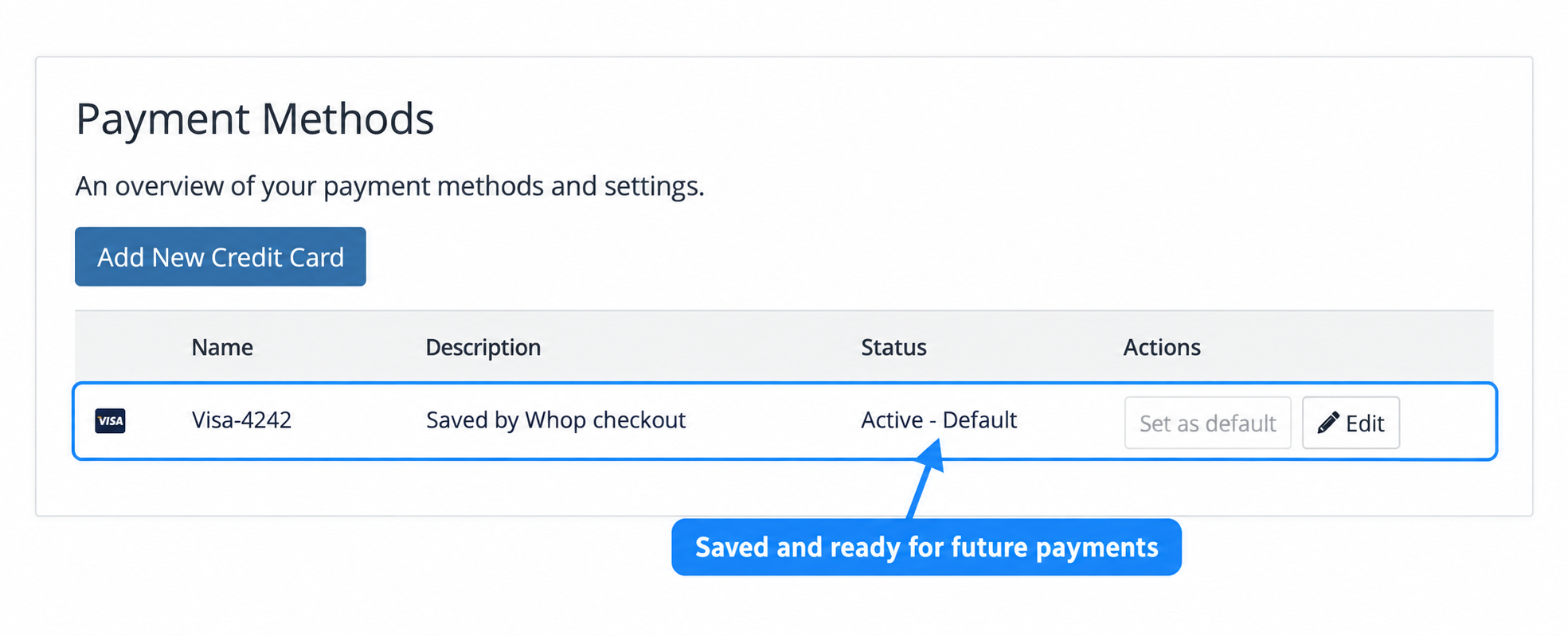
Sandbox: Visa-4242 is listed as Active - Default after a successful save.
-
Attempt Capture. Continue only after Payment Methods lists a reusable Whop card. Create a second test invoice for the same client, set its payment method to Whop Payments, and leave it unpaid. From the admin invoice screen, choose Attempt Capture to charge the saved card without the customer present. Confirm it becomes Paid. If it reads Payment Pending, Whop is still settling it: wait for the next cron run and refresh, rather than capturing again.
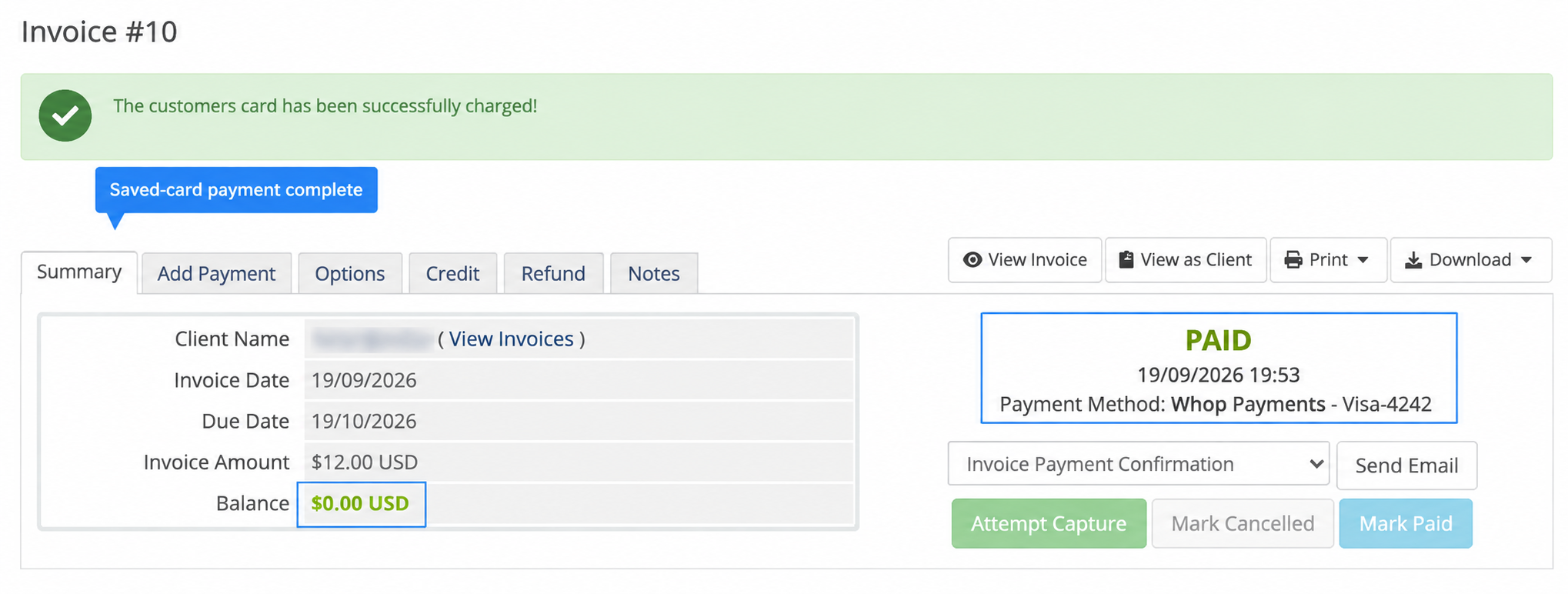
Sandbox: one $12.00 saved-card capture leaves the invoice Paid with no balance.
-
Whop Checkout. Activate Whop Checkout in Payment Gateways if you have not already, set a third test invoice's payment method to it, and pay with the same test card. Unlike Whop Payments, it never saves a card for later use.
-
Refunds. From the first invoice's payment, open the Refund tab and issue a partial refund, for example USD 3.00 of the USD 10.00 you paid. Confirm a USD 3.00 refund in WHMCS and the matching Sandbox business in Whop. WHMCS 9 may keep the invoice Paid and record its native credit-note adjustment; the invoice balance is not the refund amount.
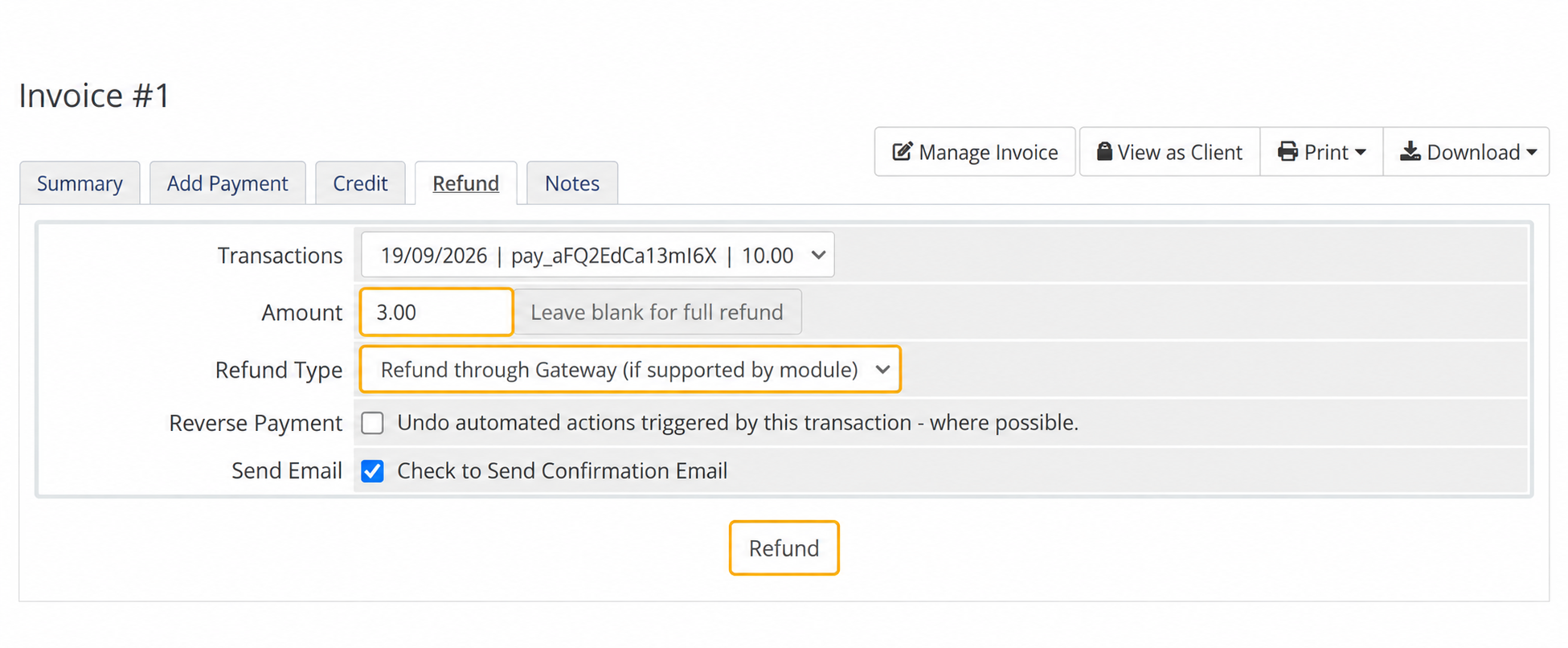
Sandbox: choose Refund through Gateway under Refund Type, enter the partial amount, then choose Refund.
Next: Get your Live business
Updated 16 days ago