
Paying an invoice
Applies to: Whop Payments and Whop Checkout
A customer pays a WHMCS invoice the same way they always have: they open the invoice and click to pay. Behind that click, the module talks to Whop, the payment company connected to your WHMCS installation, to move the money and confirm it arrived. WHMCS never marks an invoice Paid until Whop has confirmed the payment.
Where you see it
The customer sees the client area invoice page: a gateway selector for Whop Payments or Whop Checkout when both are active, a Pay Now button, and, if they already have a saved card, a chooser listing that card alongside Enter New Card Information Below, with a Submit Payment button. Staff see the same invoice in the admin area, along with the transaction once it posts.
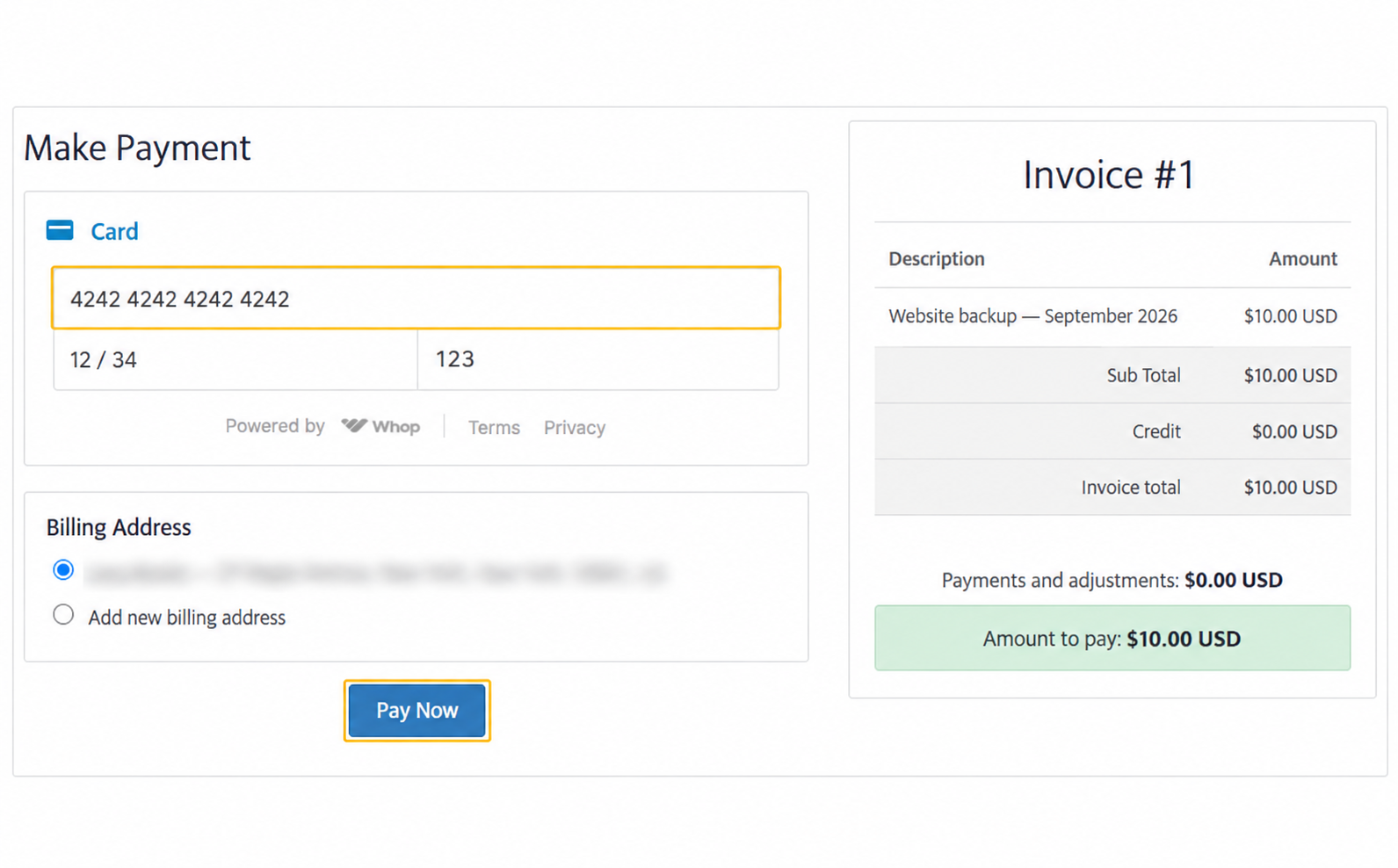
Sandbox: enter the public test card, check the invoice amount, and choose Pay Now.
What happens
Whop Payments
Customer opens the invoice
        |
Enters a new card, or picks a saved card and clicks Submit Payment
        |
Whop processes the card
        |
The module confirms the payment with Whop
        |
Invoice is marked Paid
Whop Checkout
Customer opens the invoice
        |
Chooses Whop Checkout and picks a payment method
        |
Whop processes the payment
        |
The module confirms the payment with Whop
        |
Invoice is marked Paid, or Payment Pending if the method settles later
In both flows, the module always confirms the payment directly with Whop before it changes the invoice. A message from the browser, such as a success screen, is never enough on its own.
There are three manual ways to pay: entering a new card in the Whop Payments form, picking a saved card and clicking Submit Payment, or using Whop Checkout with whatever method Whop offers that customer.
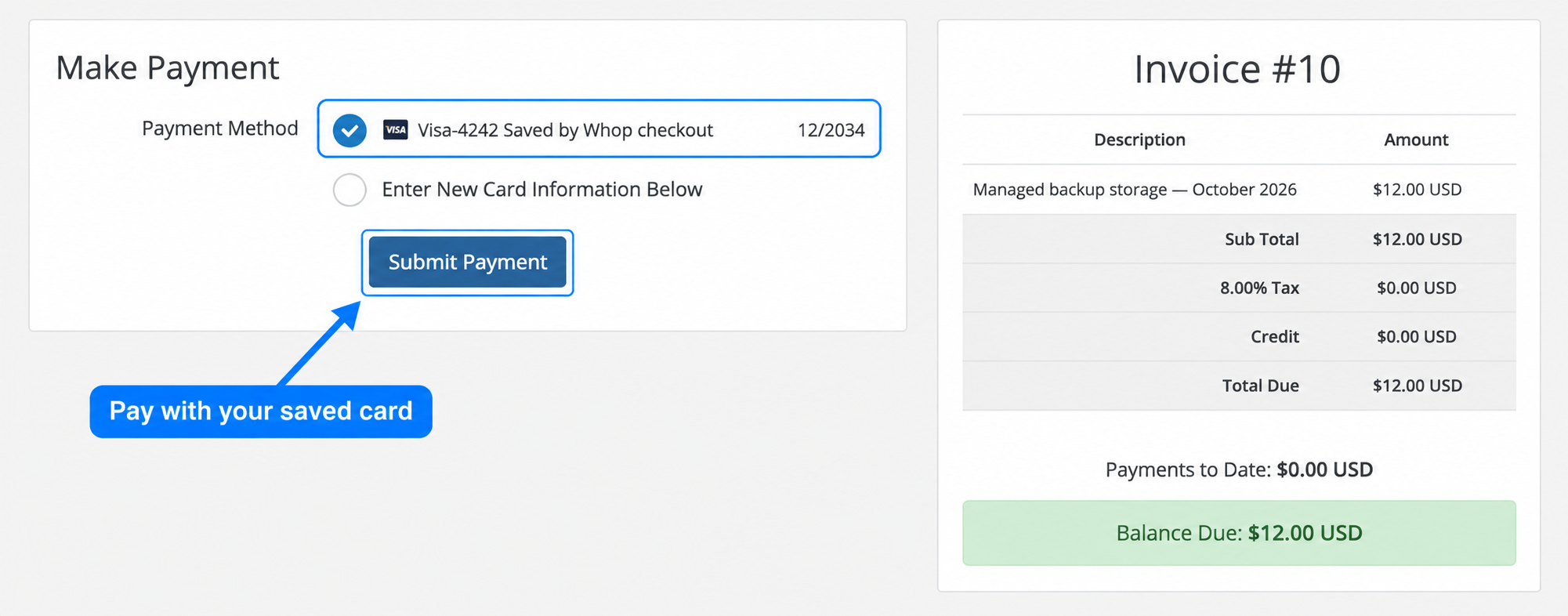
Sandbox: choose the existing Visa and Submit Payment, or select Enter New Card Information Below to use another card.
What to expect
A new-card payment marks the invoice Paid as soon as the module verifies it with Whop. A saved-card charge usually does the same, and takes a moment longer when Whop is still settling it. Payment Pending, WHMCS's own status for a payment still settling, appears when a Whop Checkout method takes longer to clear, such as a bank-style payment, or when a saved-card charge is still processing.
If the customer closes the browser before a payment finishes, nothing is cancelled. Whop keeps processing it, and a webhook, a message Whop sends WHMCS when something happens, lets WHMCS record the result automatically, even with no one watching the invoice anymore.
If two payments somehow go through for the same invoice, for example a customer pays from their phone and then again from a laptop before the first receipt appears, WHMCS keeps both rather than losing either one. Example: Marco's invoice for 120.00 is paid twice by accident. WHMCS records two separate 120.00 transactions, marks the invoice Paid, and adds 120.00 of credit to his account.
The invoice summary next to the payment form shows the invoice number, the line items, any tax, credit already applied, and the amount still due. The customer also picks a billing address for the payment: their main WHMCS profile, another saved address, or a new one entered on the spot. Whop Checkout asks for a phone number too, but only when the Require phone number setting is turned on; otherwise none is collected.
When the invoice balance changes
The payment page checks the current balance when the customer clicks Pay Now. If a staff member has applied credit or another payment has reduced the balance, it refreshes the checkout and asks the customer to approve the new amount before charging.
- The customer opens a payment page showing $25.00 USD.
- Staff apply $5.00 of credit in WHMCS while that page stays open.
- The customer's next Pay Now click shows the warning below and updates Amount to pay to $20.00 USD. It does not charge the old amount.
- The customer reviews the updated checkout, enters any details requested again, and clicks Pay Now once more to approve the new amount.
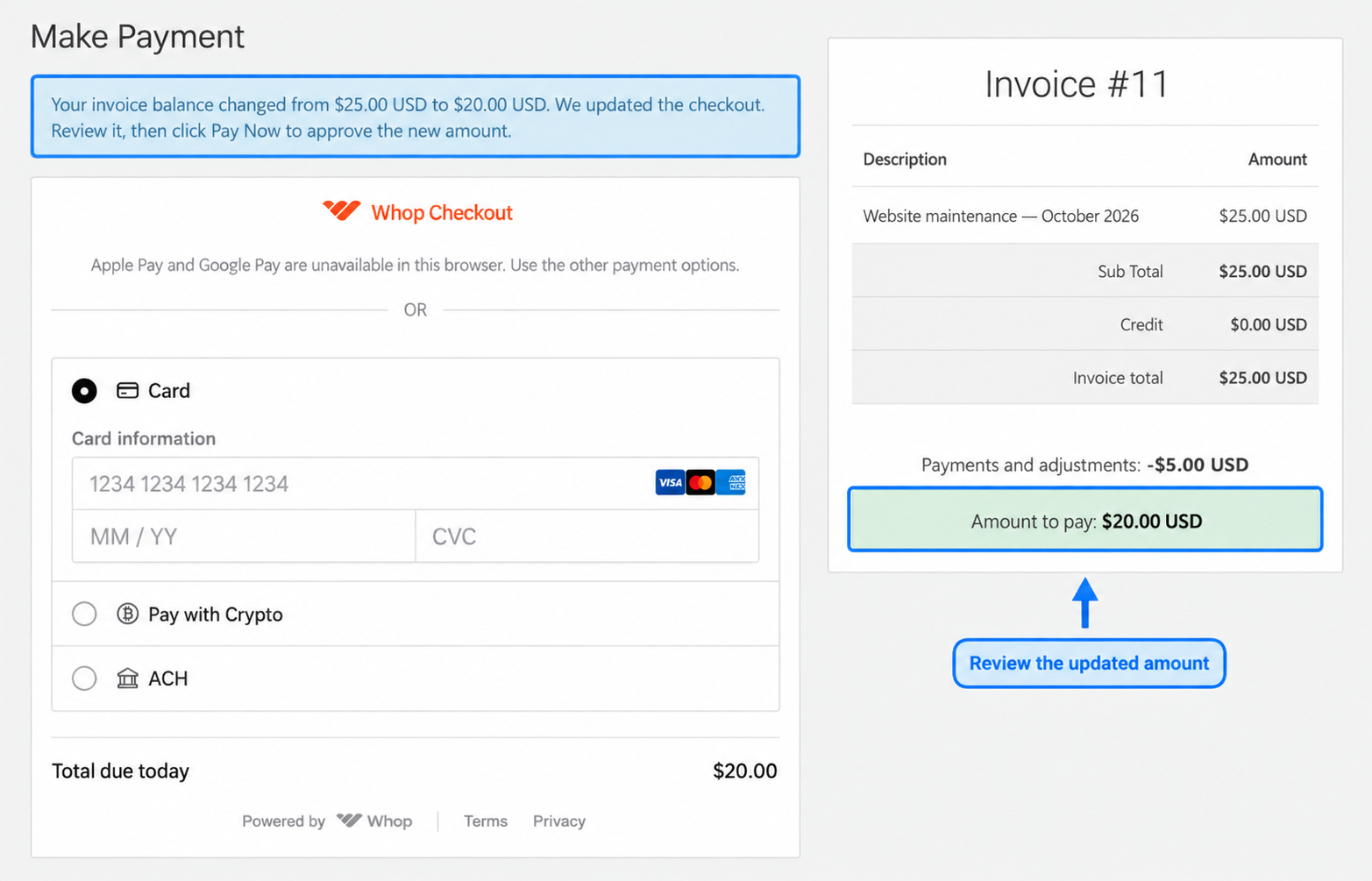
Sandbox: the warning shows the change from $25.00 to $20.00. The issued invoice total remains $25.00; WHMCS 9 lists the $5.00 credit under Payments and adjustments.
The Apple Pay and Google Pay shortcuts on the invoice itself are the exception: they charge the amount they were prepared with. This review sequence applies to the full payment page.
3D Secure
3D Secure is the card network's identity check: the bank may ask the customer to confirm that a payment is really theirs. Two settings control it. 3D Secure for payments covers every new-card payment, on both Whop Payments and Whop Checkout. 3D Secure when saving a card covers only saving a card without paying anything.
In Sandbox, Whop cannot yet force this check, so even Always require a challenge is sent as Require a challenge when the processor asks instead. In Live, if Whop refuses to create a checkout at the strictest level, the module automatically retries once at Require a challenge when the processor asks, so the customer is not blocked.
Whichever level you choose, the card issuer decides whether a challenge actually appears. Always require a challenge does not guarantee one, and Frictionless 3D Secure does not guarantee none.
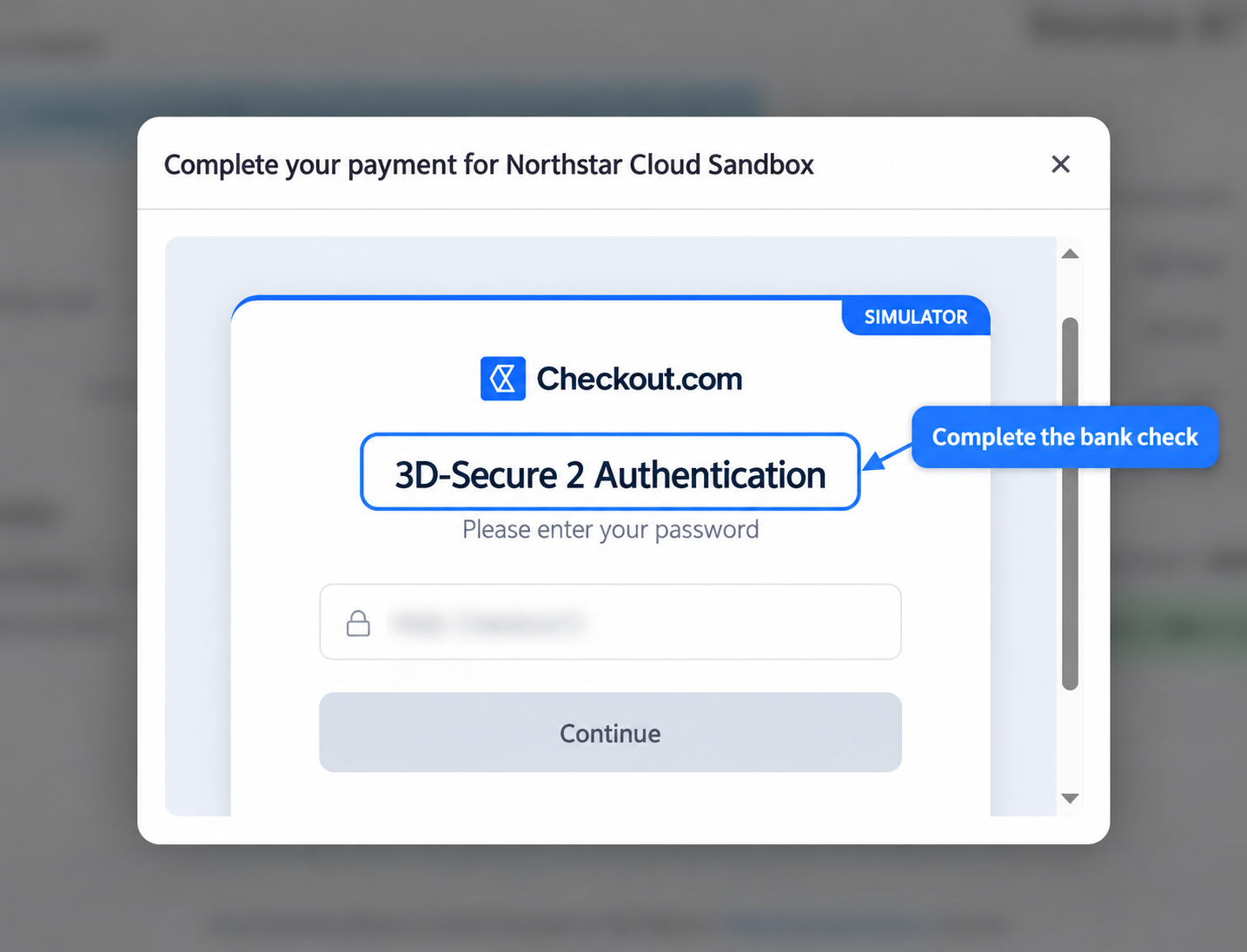
Sandbox: a dedicated challenge test card opens the issuer simulator inside the card form.
Apple Pay and Google Pay
These wallet buttons appear inside Whop Checkout only, never on the Whop Payments card form. They need a WHMCS site served over public HTTPS, and a customer whose device, browser and wallet support them. Verify your WHMCS domain under Apple Pay and Google Pay for embedded checkout in Whop; Get your Live business covers it. Use public test cards for Sandbox validation. Confirm wallet availability on your Live site with an eligible browser and wallet. Turn on Show express checkout on invoices to also show these buttons on the invoice page itself; without it, they still appear inside the Whop Checkout payment screen.
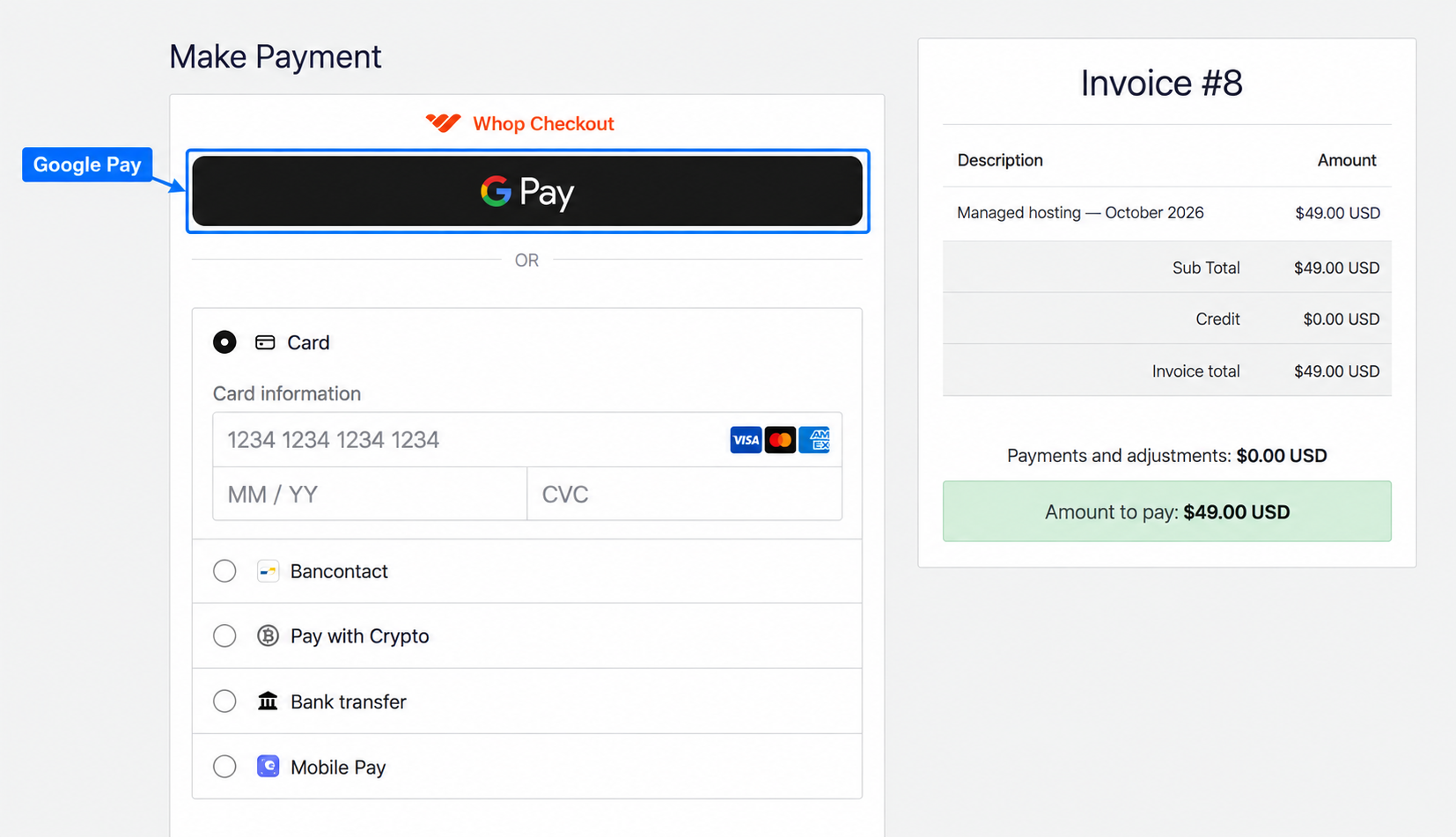
Live: Google Pay appears above the other payment methods in Whop Checkout. Apple Pay appears instead where the customer's device and wallet support it.
To offer the same shortcut directly on an unpaid invoice, open Payment Gateways > Whop Checkout, enable Show express checkout on invoices, and click Save Changes. Customers with an eligible wallet can then pay beneath Pay Now, without first opening the full payment screen.
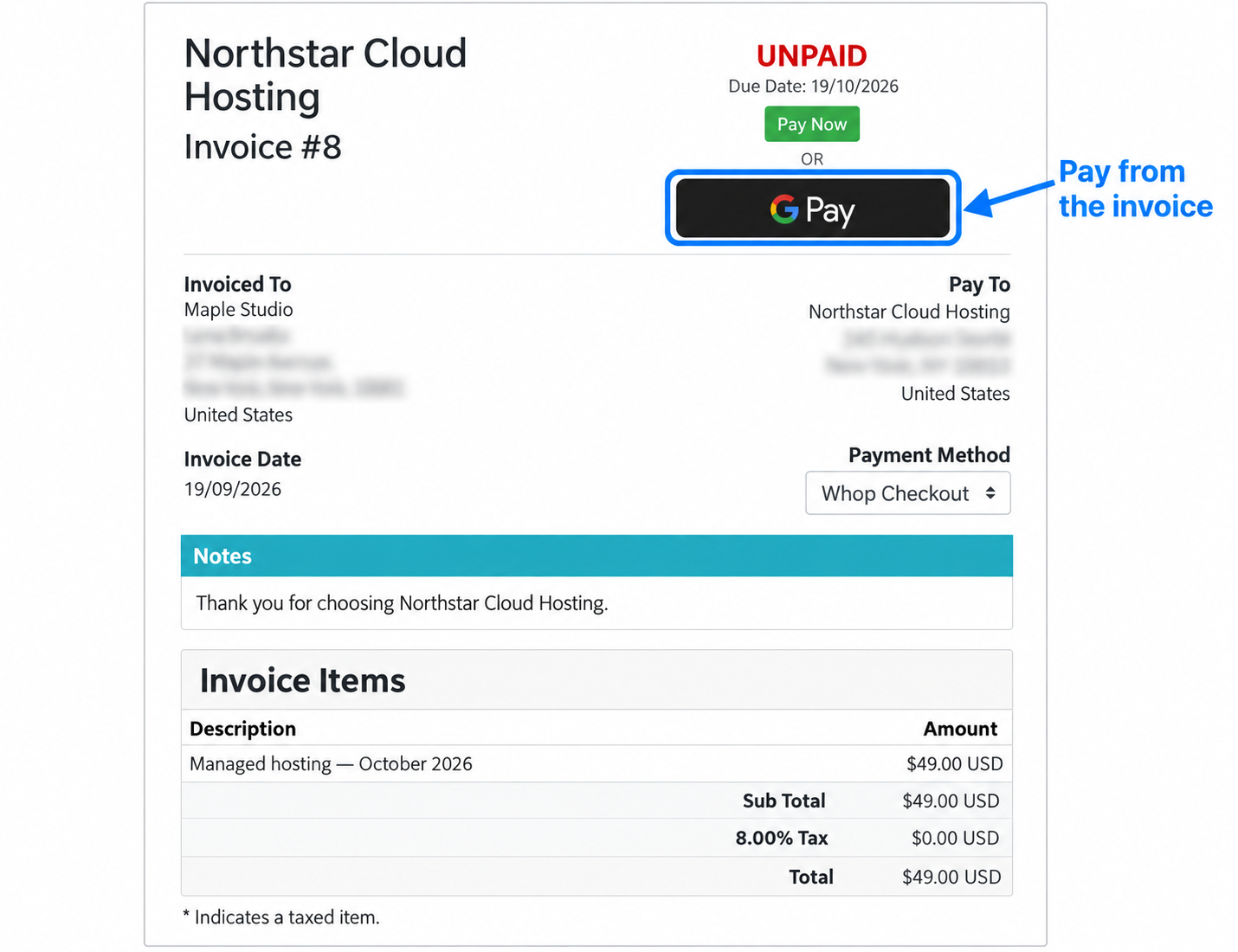
Live: the unpaid invoice offers Google Pay directly below Pay Now, with Whop Checkout selected.
PayPal and other methods
PayPal is turned on inside Whop, not WHMCS: go to Whop's Settings > Payments and set it up there. Every other payment method the business accepts is chosen in Whop's Settings > Checkout > Payment methods. Once enabled, a method appears automatically in Whop Checkout for customers Whop considers eligible for that method, amount, and currency.
Adaptive Pricing and local currency
Whop's Adaptive Pricing is available through the Local currency payments setting in Whop Checkout. Customers can pay a local-currency quote while the invoice stays in its original currency. The checkout also offers a choice such as Pay in USD instead. See the illustrated Adaptive Pricing walkthrough for the customer quote, Whop dashboard and resulting WHMCS transaction.
Require a customer phone number
Open Payment Gateways > Whop Checkout, enable Require phone number, and click Save Changes. This setting is off by default. When enabled, the embedded checkout asks the customer to select a country code and enter a phone number before payment can complete.
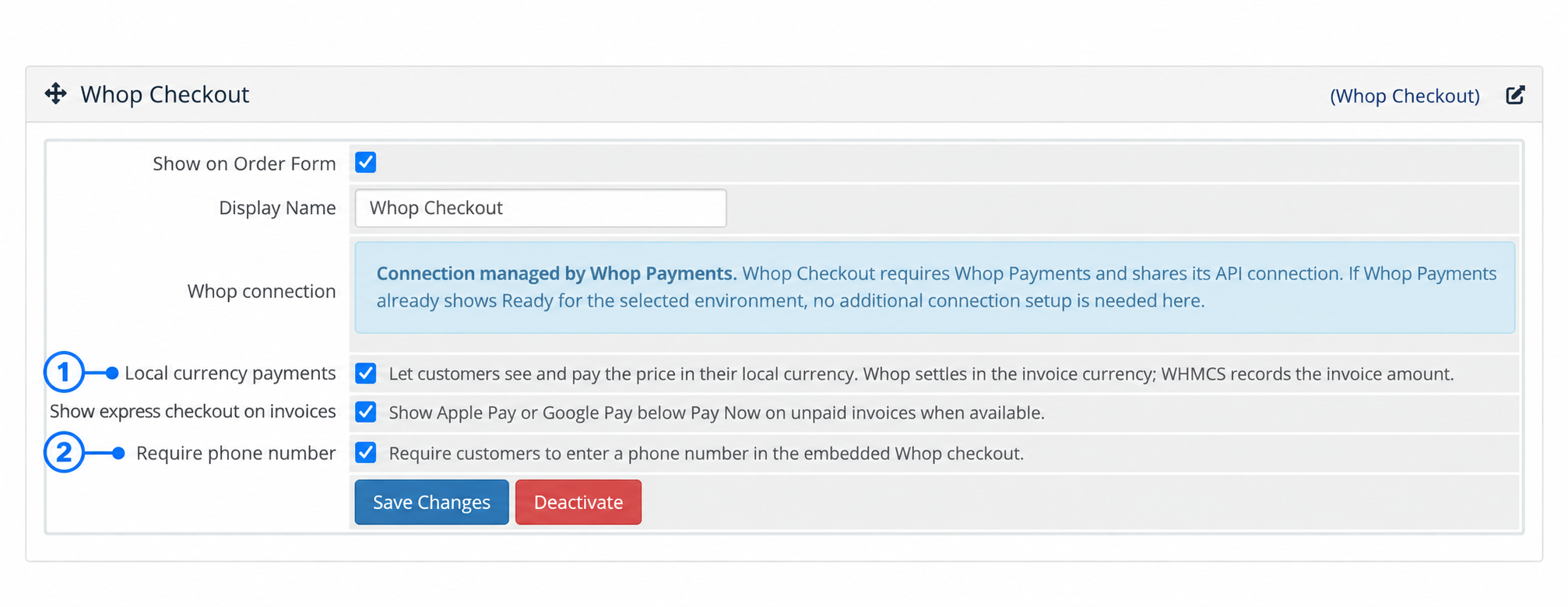
1 enables Adaptive Pricing through Local currency payments. 2 requires a customer phone number. Save Changes applies your choices.
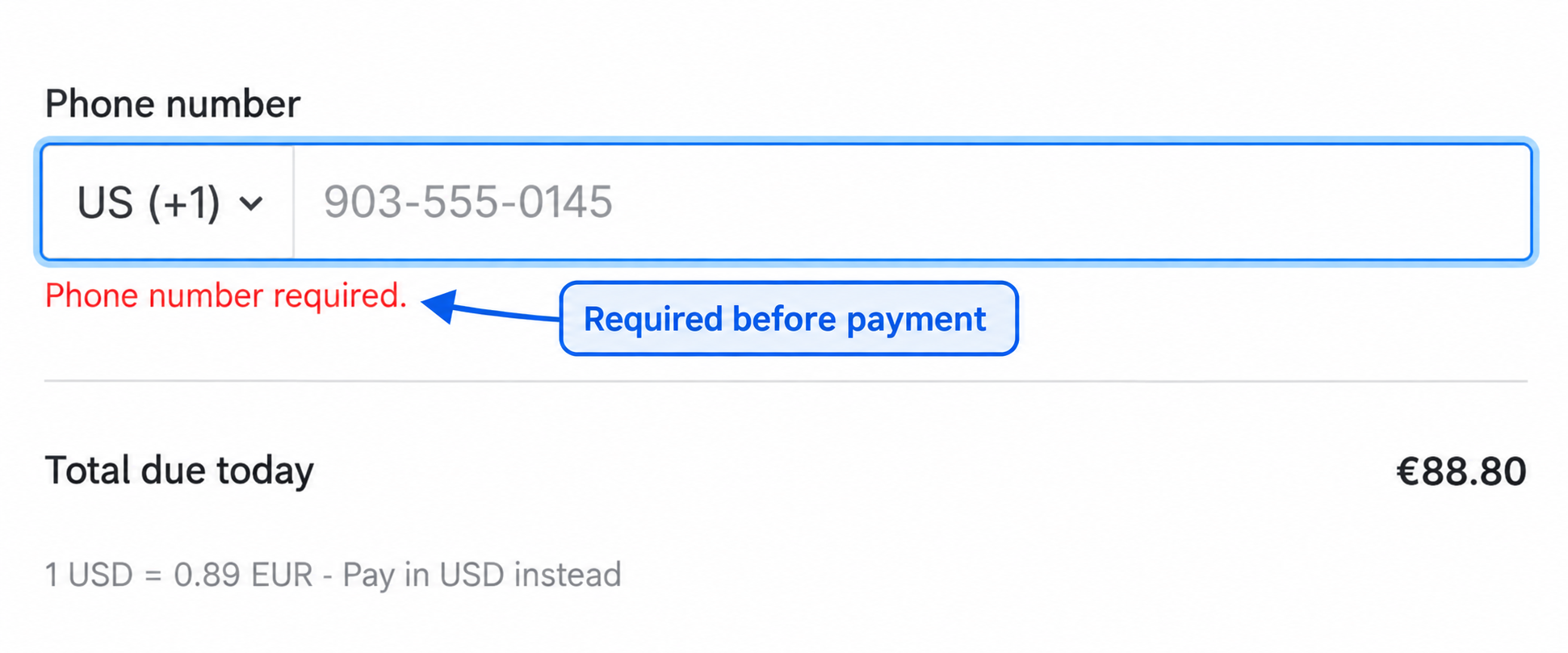
Sandbox: leaving the field empty shows “Phone number required.” The gray example in the field is a placeholder, not a submitted number.
After a successful payment, the collected number appears under Customer > Phone in the Whop payment details. This checkout setting does not change the phone number on the customer's WHMCS profile.
The checkout limit
Open Settings > Payments and check Checkout limit for your business. A Live business may start at USD 2,500, while Sandbox can already have a much higher limit. Request a review there if your expected invoices exceed the displayed limit; Whop controls the review and its timing.
Settings involved
- 3D Secure for payments: how strongly Whop checks the cardholder's identity on new-card payments, on both gateways. See Settings reference.
- 3D Secure when saving a card: the same check for saving a card without paying. See Settings reference.
- Show express checkout on invoices: adds Apple Pay and Google Pay to the invoice page for Whop Checkout. See Settings reference.
- Local currency payments: lets Whop Checkout quote the customer in their own currency. See Settings reference.
- Require phone number: makes Whop Checkout collect a phone number before it will complete. See Settings reference.
- Show on Order Form: WHMCS's own control for whether a gateway is offered on new orders. See Settings reference.
Related: The two gateways side by side, Saved cards and automatic payments, Amounts, currencies, taxes and fees.
Updated 16 days ago