
Troubleshooting and support
Most problems with Whop Payments are one of the cases below. Each one gives the symptom, the likely cause, and what to do about it.
Connection reads Needs attention
Symptom: The Sandbox or Live card on System Settings > Payment Gateways > Whop Payments (older WHMCS versions call this menu Setup) shows Needs attention instead of Ready.
Cause: The connection check tells you what to fix with a specific message on the card itself. Some of these are about a webhook, a message Whop sends automatically to tell WHMCS about a payment.
Action: Match the message on the card to the fix below, apply it, then click Check connection again.
| If the card says | Do this |
|---|---|
| "The Whop account is not active..." | Check the account's status in Whop. |
| "Card payments are not active on this Whop account, or the key cannot see that..." | Turn on card payments for the account in Whop, and confirm the key can see it. |
| Names one or more missing permissions | Add the named permissions to the key in Whop, or issue a new key with all 21 permissions. |
| "In the Whop tax settings choose 'I'll handle tax myself'..." | Open the tax settings in Whop and choose that option. WHMCS calculates tax, not Whop. |
| "The webhook could not be verified..." | Make sure the callback address is reachable over the internet and the key can manage webhooks. |
| "Another webhook in Whop still points at this installation..." | Open Whop under Developer > Webhooks and disable the other webhook by hand. |
| "A public HTTPS WHMCS callback URL is required..." | Set your WHMCS System URL to a public HTTPS address. Sandbox can use a tunnel address instead. |
| A key you pasted belongs to a different business | Use a key from the business already connected to that card. |
A repaired connection can show a dated notice asking you to review recent payments and refunds from before the repair. Dismissing that notice only clears it; it never replays anything.
If the connection is Ready but checkout says Whop could not verify inclusive pricing, open Settings > Tax in Whop and set Tax type to Inclusive. Keep Collect VAT IDs from users off, then reopen the invoice payment form. The connection check alone does not confirm every checkout setting.
The gateway or payment form is missing on an invoice
Symptom: A customer's invoice shows no way to pay with Whop, or the Whop option is missing entirely.
Cause: One of a few common reasons:
- The gateway, Whop Payments or Whop Checkout, is not activated.
- Show on Order Form is off for that gateway. This only affects new orders; it does not remove the gateway from an invoice already using it.
- The invoice's currency is one Whop does not support. The gateway still appears on the invoice, but its payment area shows this message instead of the card form or checkout: "Whop payments are not available for invoices in {CURRENCY}. Please choose a different payment method."
- The environment selected in Payment environment is not Ready. A customer instead sees "This payment method is temporarily unavailable."
Action: Check activation, then Show on Order Form, then the invoice's currency, then the connection card's status on Payment Gateways > Whop Payments, in that order. If you updated recently or run a custom theme, confirm whop-payment.tpl and whop-complete.tpl are present in every active system theme, and check any product group restriction on the gateway.
The customer paid but the invoice is not Paid
Symptom: The customer says they paid, or you can see the payment inside Whop, but the WHMCS invoice still shows Unpaid.
Cause: WHMCS marks an invoice Paid only once it receives and reads the confirmation. That confirmation normally arrives immediately through the webhook and is processed in the same moment. WHMCS's cron, its own scheduled task that runs every five minutes, picks up anything that needed a second try. If the webhook was delayed, or cron is not running, WHMCS can lag behind the real payment.
Action:
- In Whop, find the payment for that invoice and confirm it actually succeeded.
- In WHMCS, look for the same payment ID in Billing > Transactions and in Billing > Gateway Log.
- Confirm WHMCS's cron is actually running. Without it, a delayed event cannot finish processing.
- If nothing shows up yet, wait. The module keeps retrying a delayed event on its own, spread out over about a day and a half, before it gives up.
Confirm the payment's real status in Whop before you mark the invoice Paid by hand or ask the customer to pay again.
3D Secure did not behave as expected
Symptom: You set 3D Secure for payments or 3D Secure when saving a card to "Always require a challenge", but no challenge appeared, or one appeared unexpectedly.
Cause: 3D Secure is a bank verification step that can appear during a card payment. Each setting is a request to the processor, and the issuing bank decides whether a challenge appears, not WHMCS or Whop. In Sandbox a mandatory choice is sent as "Require a challenge when the processor asks" instead. In Live, if Whop refuses the mandatory level, the module asks once more at that same conditional level.
Action: To test a challenge in Sandbox, use the dedicated 3D Secure test card rather than relying on "Always require a challenge" to force one. On Live, treat the setting as a preference: confirm it saved correctly, but do not expect it to guarantee a challenge on every payment.
An automatic payment failed or is pending
Symptom: An automatic renewal charge failed, or is stuck at Payment Pending (WHMCS's status for money that is on its way but not yet confirmed).
Cause:
- The saved card needed authentication that an unattended charge cannot complete, so WHMCS records it as a failed payment.
- The card was saved under Sandbox while Live is currently selected, or the reverse. A card only works in the environment it was saved under.
- The payment is genuinely still processing and needs a little time.
Action: Compare the environment selected on Payment Gateways > Whop Payments with the environment the card was saved under. If authentication is the block, ask the customer to pay the invoice themselves so they can complete it. If the invoice is Payment Pending, let it resolve rather than retrying right away. WHMCS's own retry schedule, in Automation Settings, decides when to attempt an unattended charge again; the module adds no retry of its own.
A card did not appear in Payment Methods
Symptom: A customer entered a card, but it is not listed under their Payment Methods.
Cause: A card is only added to WHMCS after Whop confirms it can be reused for a future charge. Also, Whop Checkout never saves a card, no matter how it is paid. Only Whop Payments can save one.
Action: Confirm the customer used Whop Payments or its dedicated card-saving flow, not Whop Checkout. If they saw "We couldn't confirm that your card was saved", the result was uncertain, not declined. Ask them to check Payment Methods again after a few minutes; a later confirmation can still add the card automatically.
If a real card is missing after the save flow, open Developer > Company API keys in Whop and edit the connected key. Confirm that member:basic:read and member📧read are selected alongside the payment-method permissions. Save, then run Check connection in WHMCS and repeat the save only after checking that the card is still absent.
Without those member-read permissions, Whop can save a card but withhold the customer reference WHMCS needs. Older module versions incorrectly reported "Only cards can be saved for automatic billing" in this case. Updated versions identify the missing permissions during connection checks and treat incomplete card details as an unconfirmed save, preserving the card at Whop.
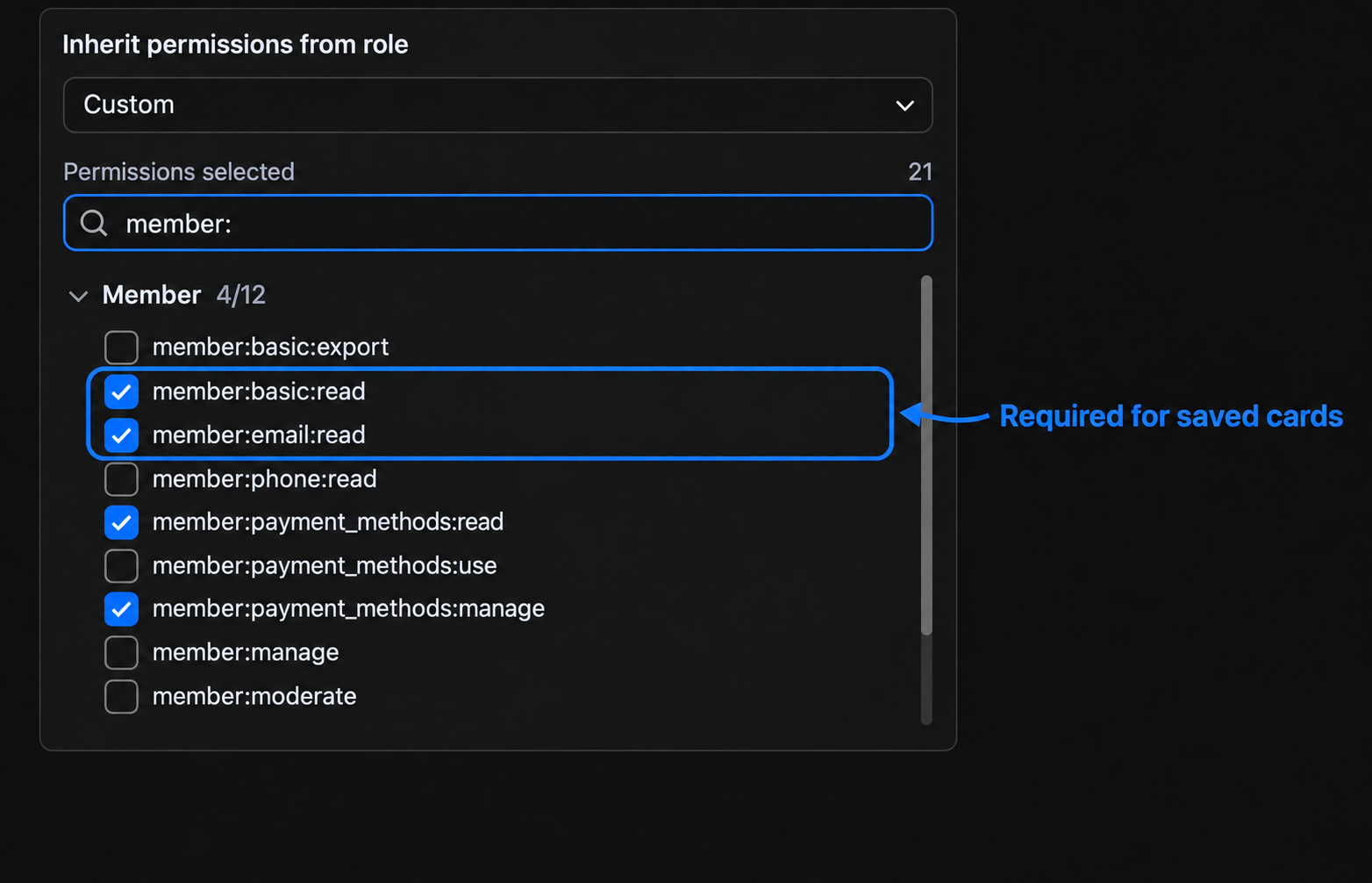
Both highlighted member-read permissions are required in Sandbox and Live.
A refund is blocked, failed or unclear
Symptom: A refund will not submit, comes back failed, or you are not sure whether it went through.
Cause:
- The invoice's currency, or the currency the buyer paid in, is a whole-unit currency, one Whop only ever charges and refunds in whole numbers, such as Japanese yen. These allow only a full refund of whatever is still refundable on the payment, never a partial one.
- A refund is already pending for that payment; only one can be in flight at a time.
- Whop accepted the refund at first but later failed it. WHMCS still shows the record it created when the refund was accepted.
- The result Whop returned was unclear, for example a timeout, and needs to be resolved before you try again.
Action: Set up a Notifications rule for whop.refund.failed so you are told if an accepted refund later fails; see Disputes and staff alerts for the exact steps. Before submitting a second refund, compare Whop's own refund record for that payment against the WHMCS transaction. Never resubmit a refund whose outcome you have not confirmed in Whop.
The balance widget is missing
Symptom: The Whop balance widget does not appear on the admin dashboard, or shows "Balance unavailable."
Cause: Two separate permissions control this. The administrator's role needs the View Gateway Balances permission in WHMCS. Separately, the Whop API key needs its own balance-read permission, one of the 21 granted when the key was created.
Action: Check the administrator's role permissions in WHMCS first. If the widget still shows "Balance unavailable", confirm in Whop that the key has its balance-read permission, then refresh. A failure here never means the balance is actually zero.
No dispute alert arrived
Symptom: A customer opened a dispute or a case against a payment in Whop, but no one on staff received an alert.
Cause: The module does not email staff directly. It raises a WHMCS Notifications event, and WHMCS only sends something when a matching Notifications rule exists with an enabled provider, usually Email.
Action: Set up the rules described in Disputes and staff alerts. If the rules already exist, look for the sticky note on the client's record. No note means the module could not match the payment to a single WHMCS transaction, and Billing > Gateway Log holds a Whop payment notice entry explaining why. A note with no email points at the rule, the recipients or email delivery.
Whop shows webhook failures
Symptom: The webhook delivery log inside Whop's dashboard shows failed deliveries for your installation.
Cause: WHMCS answers Whop immediately to confirm the message arrived, then processes what happened afterward. A delivery can still fail at the door, for example if the callback address was briefly unreachable.
Action: A single failure is not unusual. Whop retries the delivery on its own schedule, and once a message reaches WHMCS the module takes over and retries the processing itself. Look into it if failures continue well past that, or if Check connection reports a problem. Confirm your site's callback address is reachable and not blocked by a firewall or password protection.
Find useful logs
Two places hold everything you usually need.
Billing > Gateway Log holds every payment outcome: created, posted, pending, refunded, capture attempts, saved-card activity and webhook results. Filter Gateway to Whop Payments for card activity. Its Result labels begin with Whop Cards, for example Whop Cards: Payment posted. Checkout activity uses Whop Checkout.
Utilities > Logs > Module Log, with Module Debug Logging turned on, holds the detailed exchange between WHMCS and Whop for a specific request. Turn this on briefly to reproduce an issue, then turn it off again. Card numbers, API keys and other secrets are never written here; they are removed before the entry is saved.
Log lines about one payment attempt usually carry the same operation ID, a code the module attaches from the first click through to the final confirmation. It is left out where it is not known yet, for example on a failure before the payment existed, so join those lines by invoice number and payment ID instead. Use it to follow one payment's whole story across both logs, and include it when you contact support.
Get support
Contact support at [email protected] or on Telegram.
Include:
- The module version, and your WHMCS and PHP versions.
- Which environment, Sandbox or Live, and which gateway.
- The invoice number.
- The transaction ID or Whop payment ID (starts with
pay_). - The operation ID from the Gateway Log.
- The relevant Gateway Log lines.
- The approximate time, with your time zone.
Never send an API key, a webhook secret, a signed checkout or return link, card details or a customer's personal details to support, in a screenshot or any other way. Support can help without them.
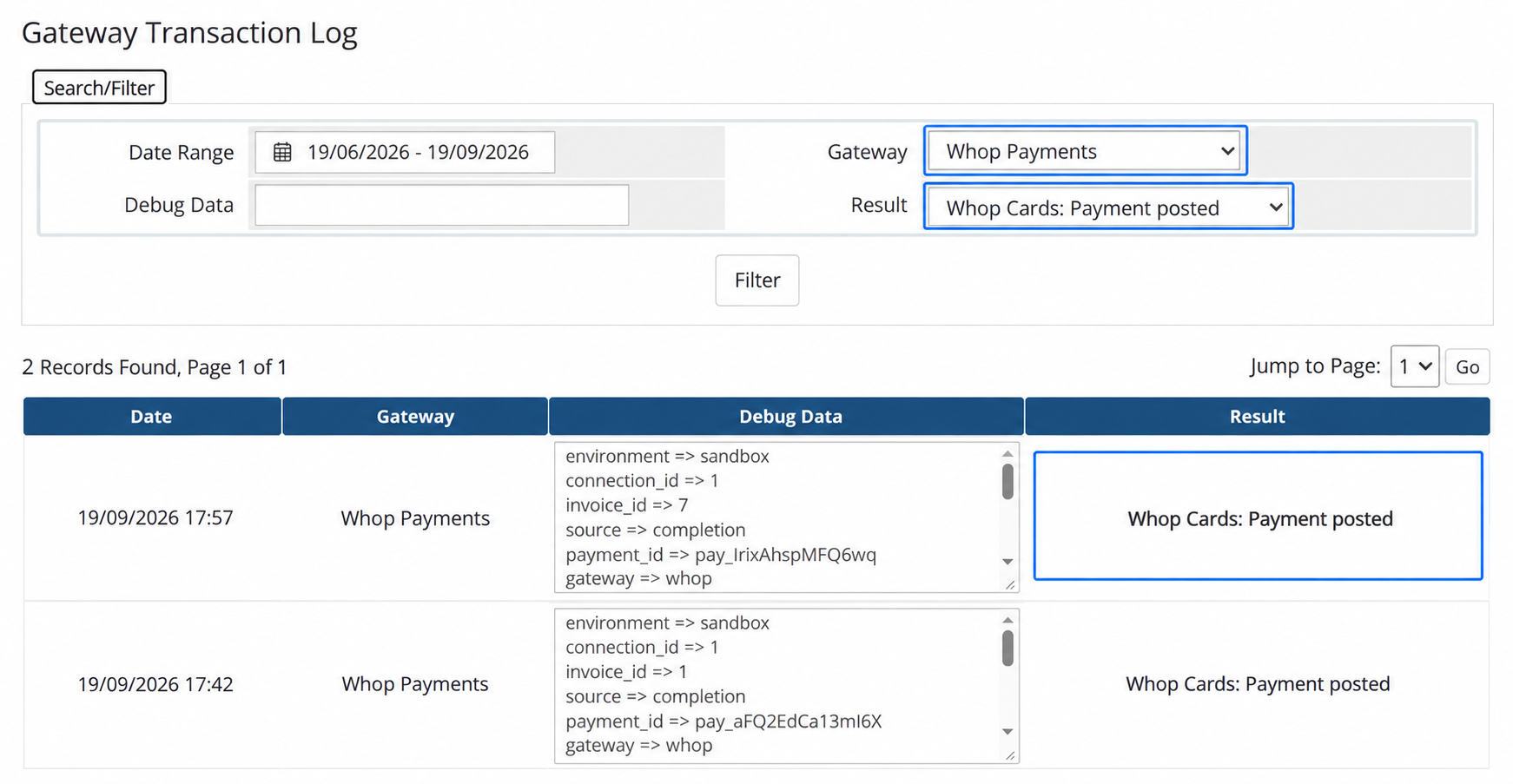
Sandbox: Gateway Whop Payments and Result Whop Cards: Payment posted isolate verified card payments.
Related: Connect WHMCS to Whop, Disputes and staff alerts, Refunds
Updated 16 days ago