
Balances, payouts and transactions
Applies to: Whop Payments and Whop Checkout
This page follows the money from a paid invoice to your bank account: what WHMCS records straight away, what Whop is holding, and what happens when you take it out.
Where you see it
- Billing > Transactions in WHMCS: payment rows with
pay_IDs, refund rows withrf_IDs, and a fee column showing what Whop kept on the payment. Refund rows carry no fee, because Whop keeps the original processing fee when money goes back. - The Whop Balance widget on the admin Home dashboard.
- Four balance cards on the Transactions page itself.
- Whop's own balance and payouts pages in its dashboard.
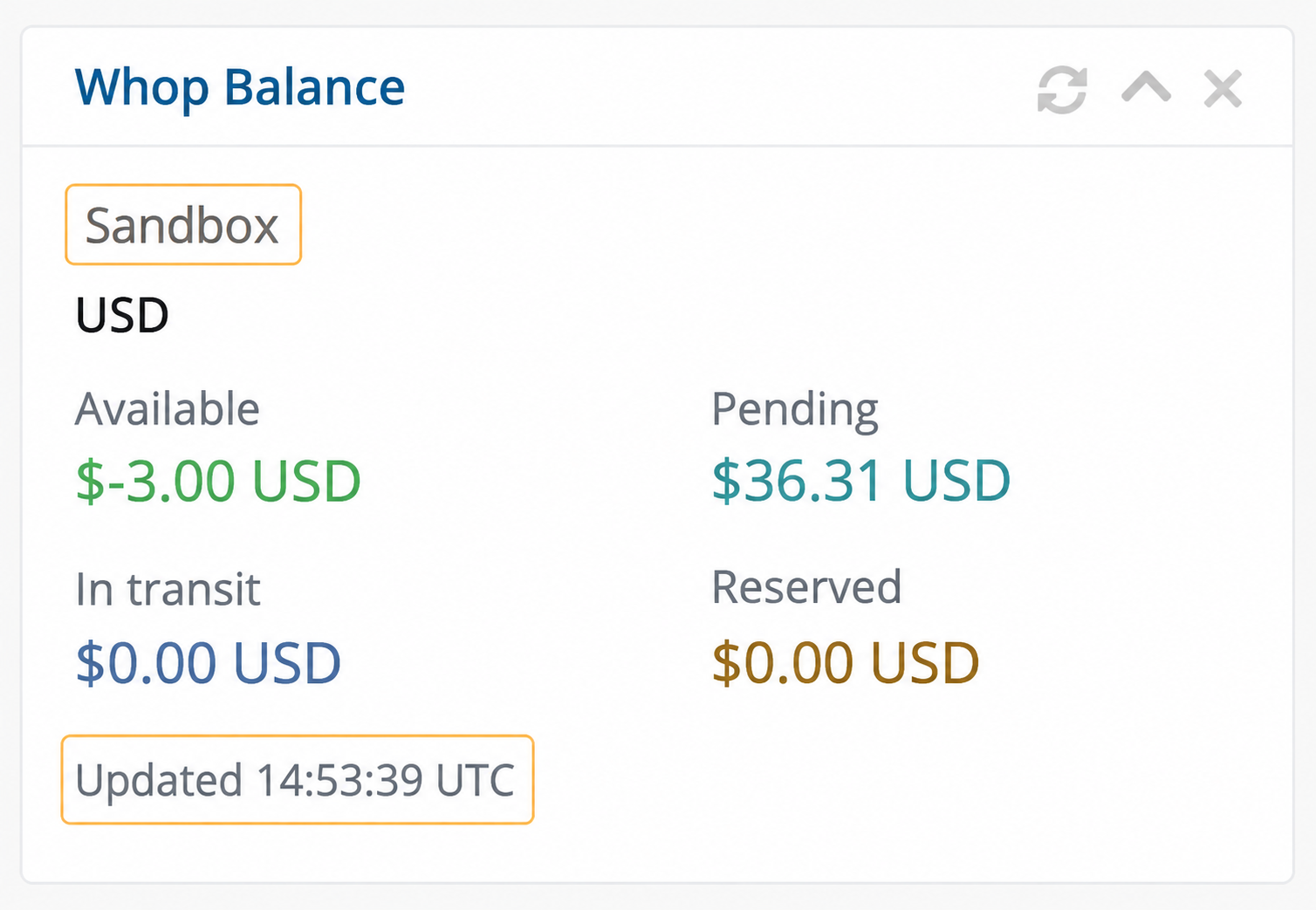
Sandbox: the widget identifies the environment and the time Whop last supplied the balances.
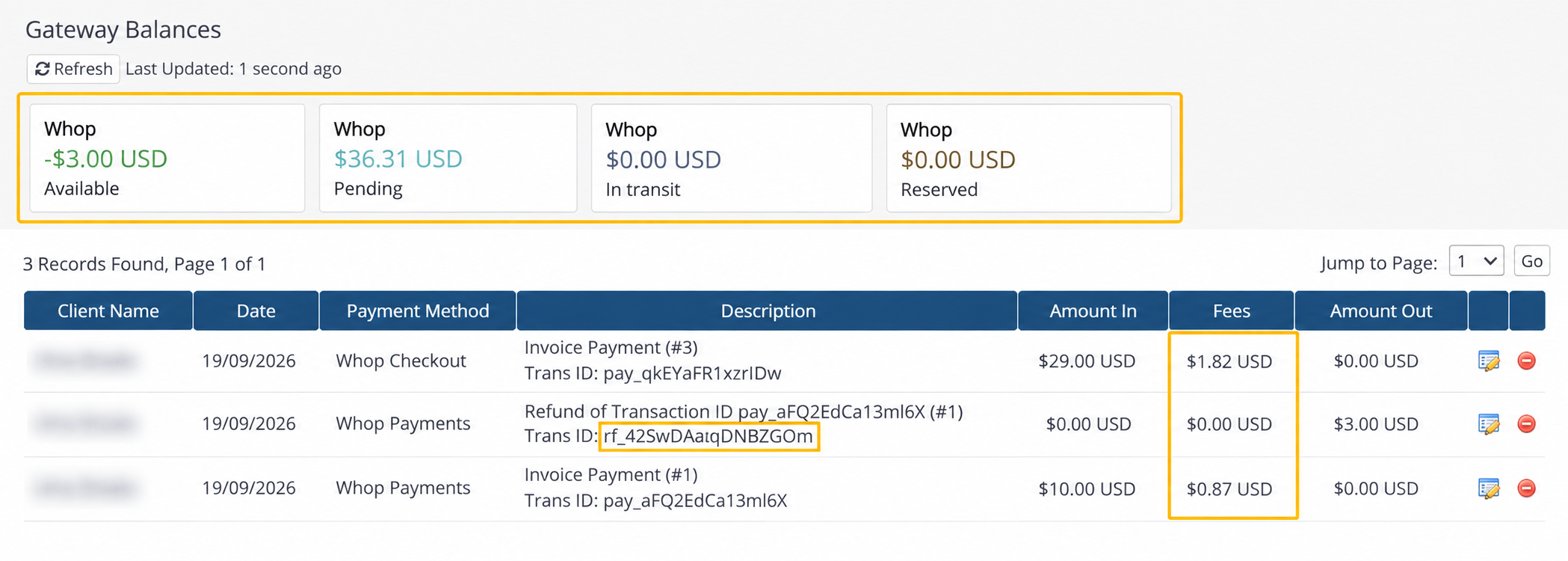
Sandbox: Whop balances appear above the native payment and refund transactions. The original payment retains its processing fee.
What happens
WHMCS records every verified Whop payment as its own transaction, the same one you see on the invoice. Behind the scenes, the module attaches identifying details, your invoice number, client ID, amount, currency, which gateway collected it, and an operation ID (an internal reference to that one payment attempt), to the payment record in Whop, so a payment can be traced from either side.
The balance widgets simply read whichever environment, Sandbox or Live, is currently selected in your Whop Payments settings, straight from Whop.
What to expect
Whop reports your balance in four categories:
- Available: what Whop says you can spend, send or withdraw right now.
- Pending: money from recent payments that is still settling.
- In transit: money moving between the account's own destinations.
- Reserved: money Whop holds back. Whop's own reserve details explain why and when it unlocks.
A successful read is reused for about two minutes before WHMCS asks Whop again; use the native refresh control for an immediate answer. Seeing the widget at all needs the View Gateway Balances permission on your administrator role, and the balance permission on your Whop API key, which Whop labels Read company balance.
Amounts stay in their original currencies. WHMCS never converts between them and never adds them into one grand total, so several currencies can appear side by side.
The Whop balance will not match your WHMCS billing totals, and that is normal. It is a snapshot of the whole connected Whop business, which can include activity from outside this WHMCS installation, not a sum of WHMCS invoices.
A Paid invoice is not the same as a payout. WHMCS marks the invoice Paid the moment Whop confirms the payment. The money itself settles into your Available balance a little later, and moving it to your bank is a separate step you take yourself in Whop.
Getting paid out in Whop
From Whop Home, open the currency balance you want to withdraw, then choose Withdraw. Open the destination selector to choose a bank account or wallet, or choose Add a new payout method. Whop shows the fee, expected arrival time, and eligible amount for each option. A crypto destination can offer standard or instant delivery; use the terms shown for your account rather than assuming every crypto withdrawal is instant.
The three-dot Manage balance menu contains Set up auto-withdrawals, where you can choose your schedule and the balance to keep for refunds and disputes.
Do not confuse that minimum balance with Whop's own reserve: a reserve is a separate hold Whop applies against future refunds and disputes on its own terms, not a figure you set.
Payouts need the verification Whop asks of your account. Check Settings > Verifications and the separate Payouts status. The individual and business checks shown there depend on your account; a business-verification prompt alone does not mean payouts are inactive. See Get your Live business.
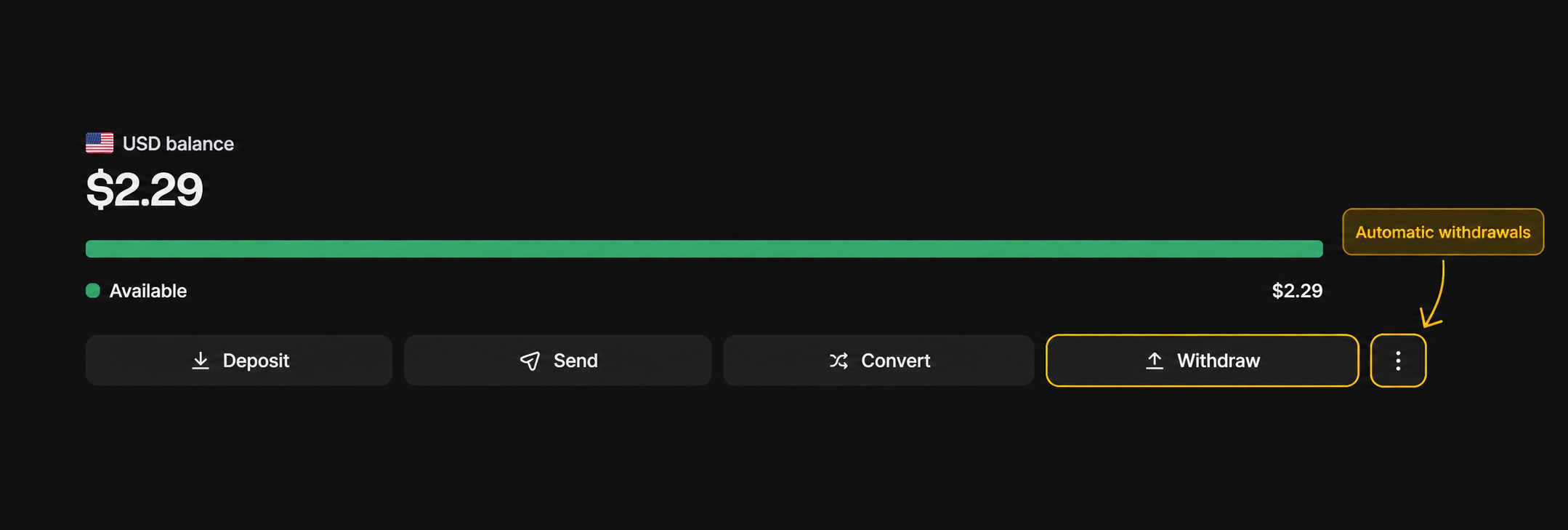
Live: open a currency balance from Home, then choose Withdraw. The three-dot menu contains automatic withdrawal settings.
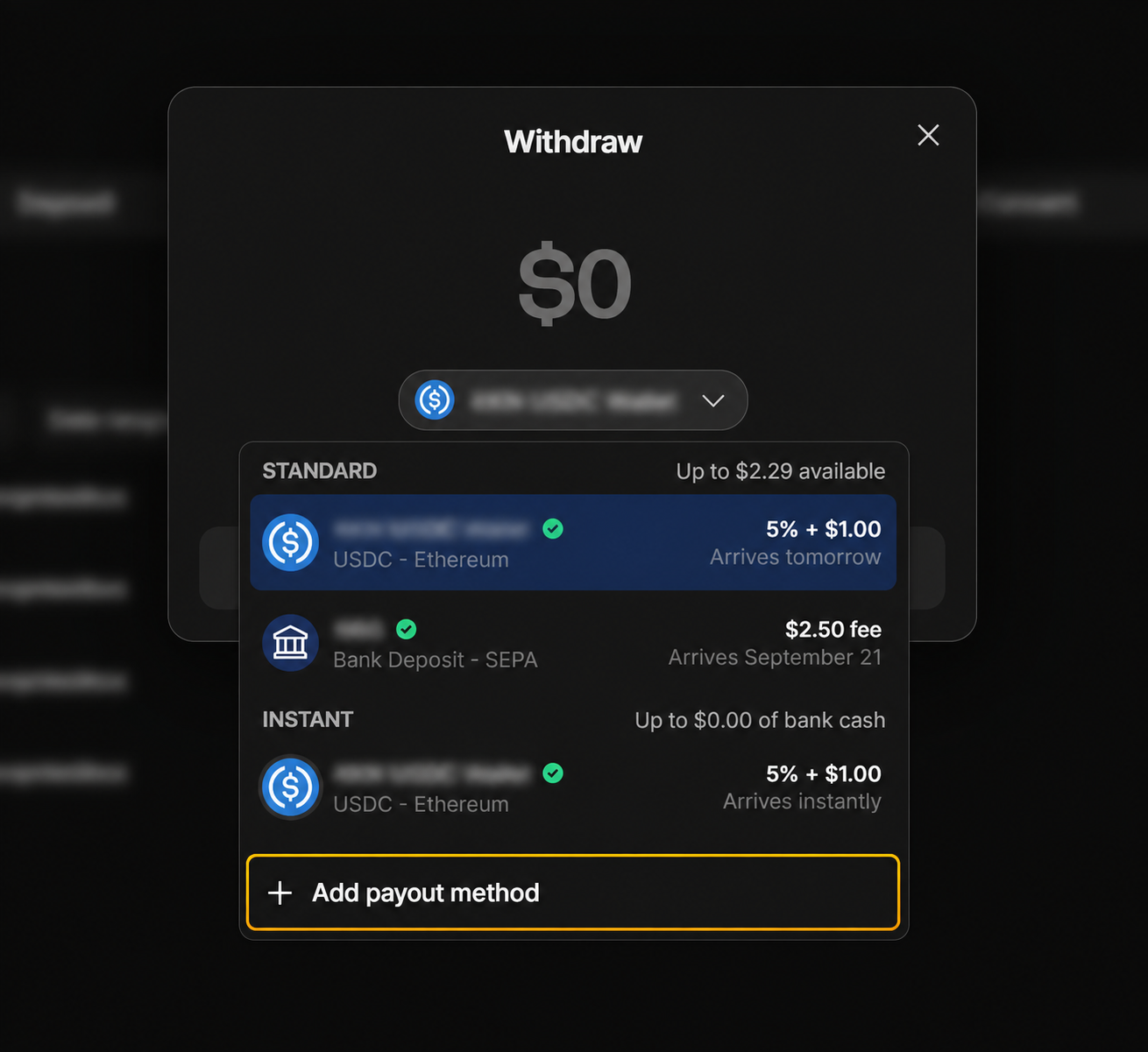
Live: compare the displayed fees and arrival times, or add a new payout method. Destination details are hidden.
Settings involved
- View Gateway Balances, a WHMCS administrator role permission, needed to see either balance widget.
- The balance permission on your Whop API key (Read company balance), needed for Whop to hand over balance data at all.
See the full list on Settings reference.
Related: Amounts, currencies, taxes and fees, Refunds, Meet Whop.
Updated 16 days ago